

Camera Tool
FORGE3D Camera Tool is a Unity Editor utility for positioning up to two scene cameras from the last active Scene View. Use it to explore a scene through a game camera, compose a view, or keep a second camera’s rotation aligned while leaving its position unchanged.
What you can do
Section titled “What you can do”- Assign Primary camera: and an optional Secondary camera: on one component.
- Follow Scene View Position, Rotation, or both, independently for each camera.
- Start and stop through a configurable Toggle key.
- Store one world-space origin per camera slot and explicitly restore it.
- Request alignment when starting or stopping through the Scene View key.
- Forward Game View input to Scene View, subject to the input limitations.
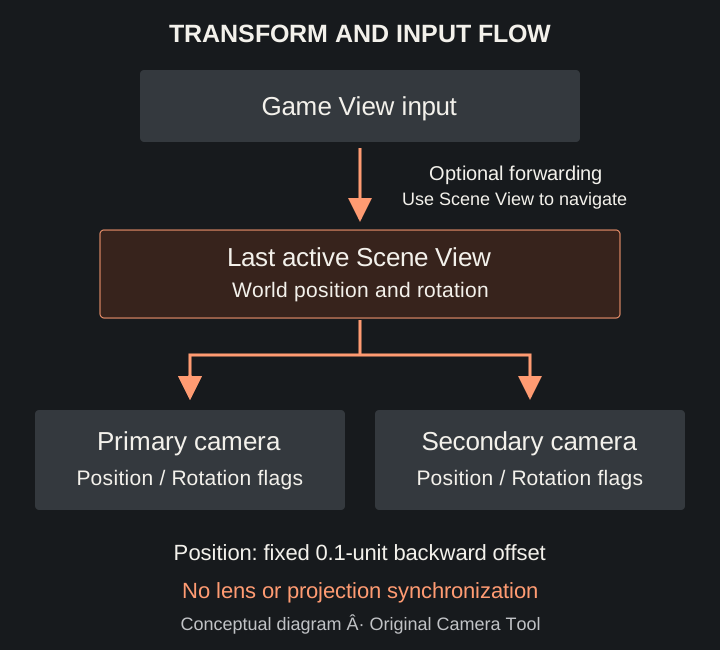
Conceptual diagram of the original tool’s transform and input flow; this is not a Unity screenshot.
Start here
Section titled “Start here”- Install Camera Tool and check your configuration.
- Follow the Quick Start with one camera.
- Learn camera setup, controls, and origins and restoration.
- Use the Inspector reference when changing settings.
- Review Editor workflows, practical examples, and troubleshooting.
Requirements and boundaries
Section titled “Requirements and boundaries”You need Unity Editor, both original product scripts, an assigned scene Camera, and an available Scene View. The automatic setup commands require at least one enabled camera on an active scene object. No third-party package is referenced by the product scripts.
Camera Tool changes transforms, not camera optics. It does not synchronize field of view, orthographic size, clipping planes, or projection mode. Position following includes a fixed offset of 0.1 world units behind the Scene View camera. It provides no camera paths, recording, screenshot export, smoothing, or named viewpoint library.
The tool operates in Edit Mode and Editor Play Mode by design; it is not a camera controller for a built game. Save a scene copy before experimenting: Undo is unreliable for setup, field edits, and origin actions. Store origins explicitly and stop deliberately before disabling or removing the tool.
Before you begin
Section titled “Before you begin”Start with one camera and keep Scene View and Game View visible side by side. Follow the Quick Start, then check Compatibility and limitations for guidance on your Unity project.
For setup and behavior questions, see the FAQ. For an existing gameplay controller, see Scripting integration.