

Ring Shadow
Overview
Section titled “Overview”Use a radial texture’s alpha as a mask for a separate ring shadow caster.
Shader menu · FORGE3D/Planets HD/Ring Shadow
Visual example
Section titled “Visual example”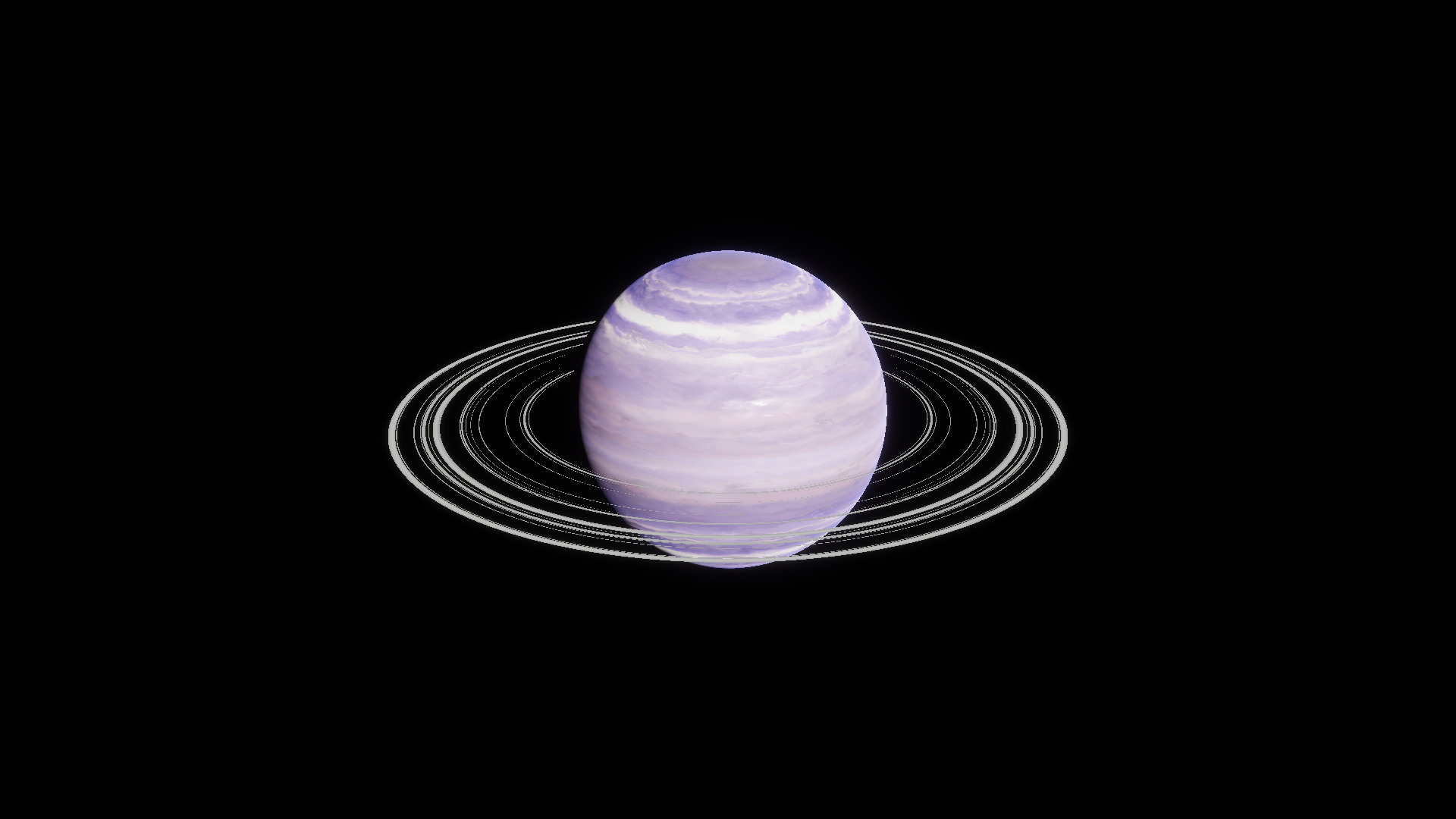
Assembled mask preview on the supplied Gas 01 ring mesh and texture. Before · Clip 1.
Where to find it
Section titled “Where to find it”Paths are relative to Assets/FORGE3D/Planets HDRP.
The shader is in Shaders/Planet_Ring_Shadow.shader. Create a material for a second ring renderer and use the original Planet_Ring_01 mesh and the Detail Map from Gas/Materials/Planet_Ring_Gas_01.mat.
Main settings
Section titled “Main settings”| Group | Inspector setting and property ID | What it changes |
|---|---|---|
| Transparency | Detail Map _DetailMap, Clip _Clip | Use the map’s alpha as the band mask. Clip scales the mask before the cutoff. |
| Transparency | Alpha Clipping, Threshold | Enable clipping and set the threshold that separates bands from gaps. |
Advanced settings
Section titled “Advanced settings”| Group | Inspector setting and property ID | What it changes |
|---|---|---|
| Surface | Ring Size _RingSize, Ring Offset _RingOffset | Match the radial mapping to the visible ring so the two band layouts align. |
| Lighting | Cast Shadows, Max Distance | Set the auxiliary Mesh Renderer to Shadows Only, and include the receiver in the distance set by the Volume’s Shadows override. |
Practical example
Section titled “Practical example”Preview the mask on the ring mesh with Alpha Clipping enabled. Compare Clip 1 and 0.25 at the same cutoff, then restore Clip 1 and follow the shadow-only setup.
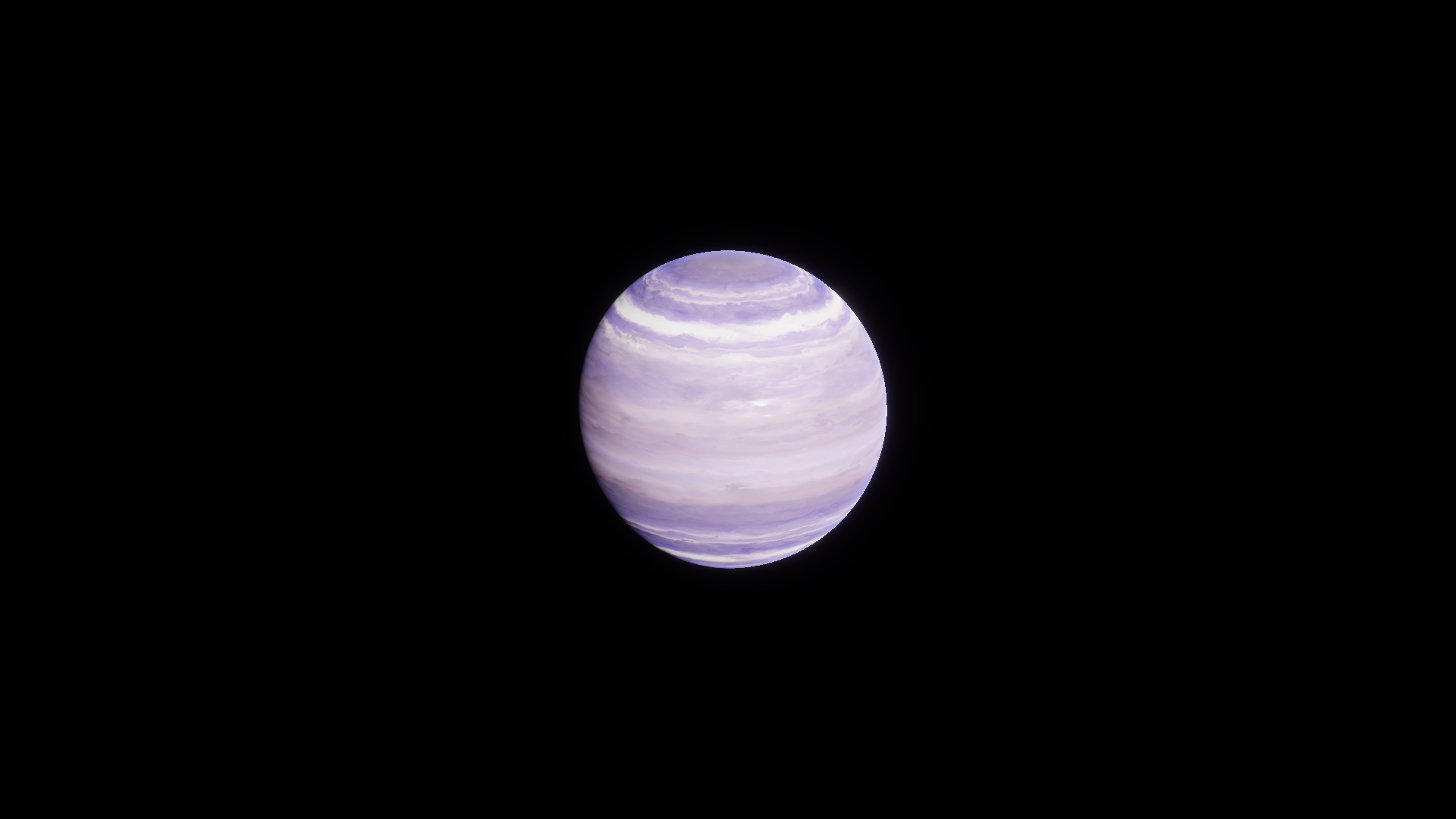
After · Clip 0.25 with the same texture and cutoff. Most bands fall below the cutoff.