

Lava and lightning
Shape magma and lit rock
Section titled “Shape magma and lit rock”- Place
Planet_Lava_01and select its root Mesh Renderer. Duplicate and reassign the body materialLava/Materials/Planet_Lava_03.mat. Leave the atmosphere assigned. - Keep the original Magma Map and lava masks. Set a fixed Exposure so you can compare the fissures without the camera adapting.
- Change Magma Color Min and Magma Color Max to set the hot palette. Try Magma Glow for overall emission strength. Use Magma Power and Magma Boost to shape which parts of the magma texture stand out.
- Move the Directional Light until you see highlights on the rock. Tune Specular, Specular Color, Specular Boost and Smoothness while leaving the magma values fixed. The light-dependent sheen and the emissive fissures have separate controls.
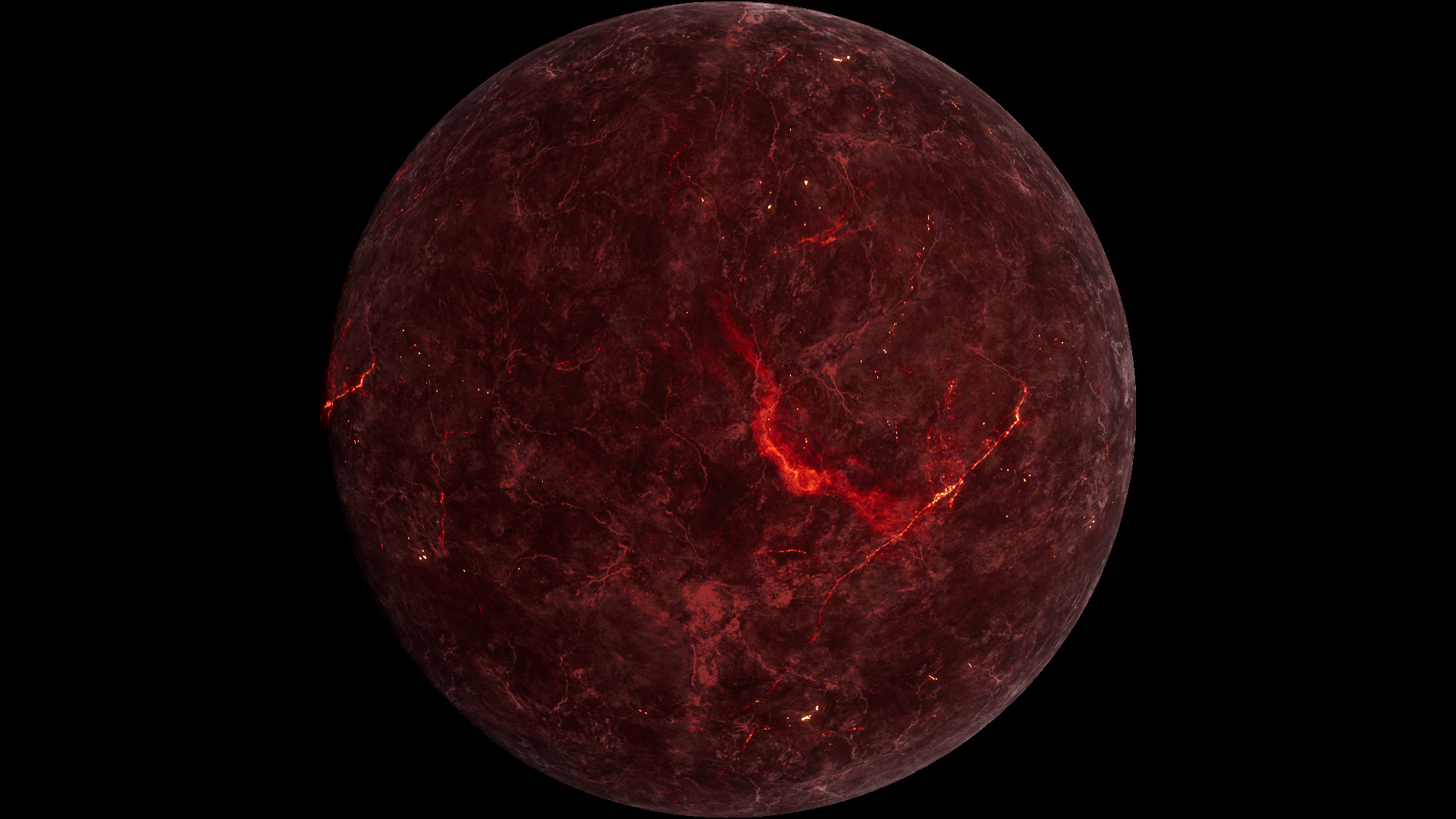
Before · Magma Boost 123.7 on the assigned Lava 03 material.
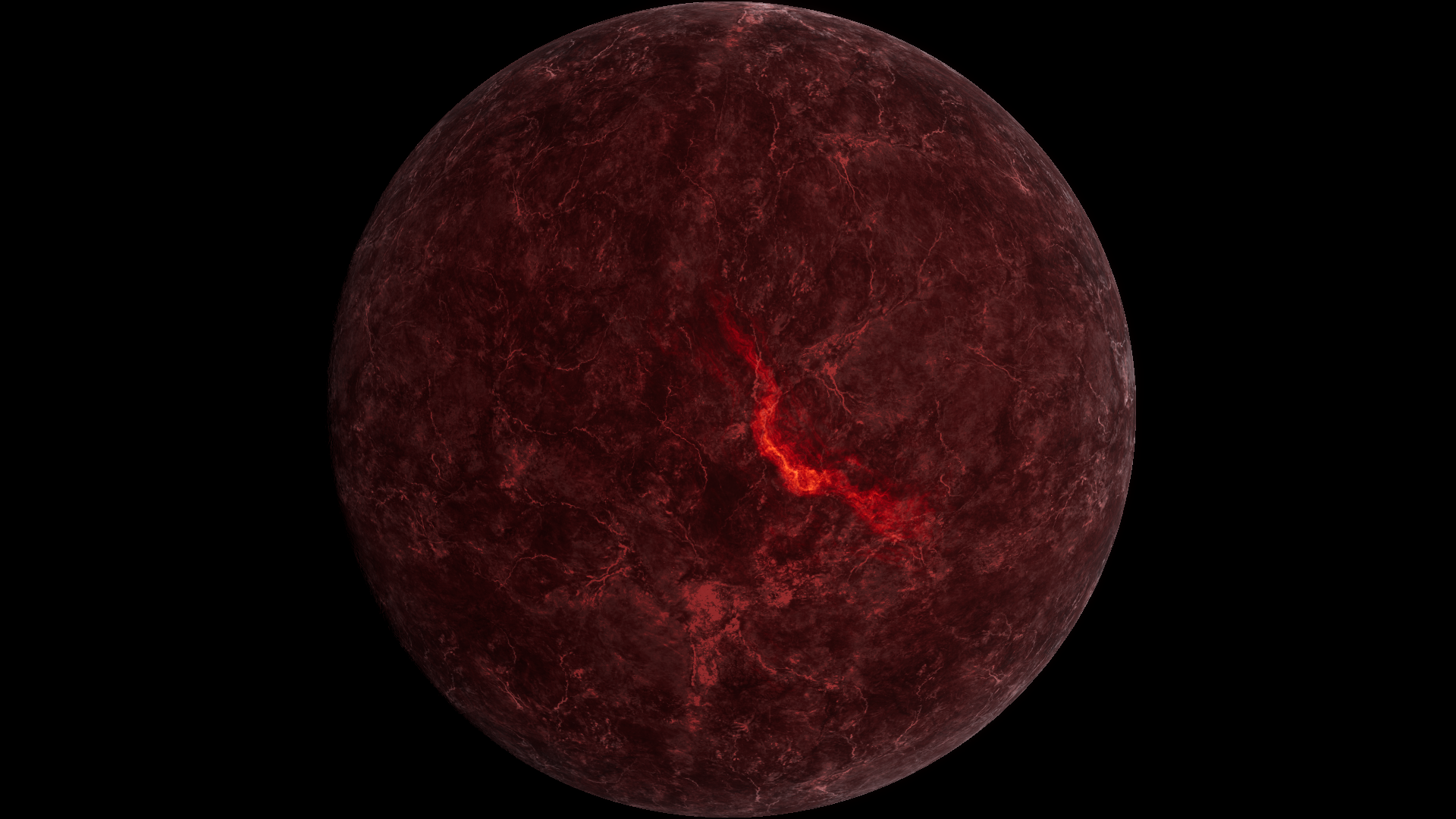
After · Magma Boost 0. Some glow remains through the masked lava emission.
Preview lightning in motion
Section titled “Preview lightning in motion”- Place
Planet_Thunderstorm_01and make a copy of its body material. Keep Lighting Mask Map and Lighting Map assigned. - Enter Play Mode and watch the surface for several seconds. Lightning uses timed phases and masks, so it can be quiet in a still frame.
- Change Lightning Color or Lightning Boost to make the flash stronger or more subtle. To change the motion of the two lightning patterns, adjust Lighting A Frequency or Lighting B Frequency separately and compare several seconds of playback.
- If flashes appear as broad white patches, lower Lightning Boost and check Exposure and Bloom. The flashes are material emission on the planet.
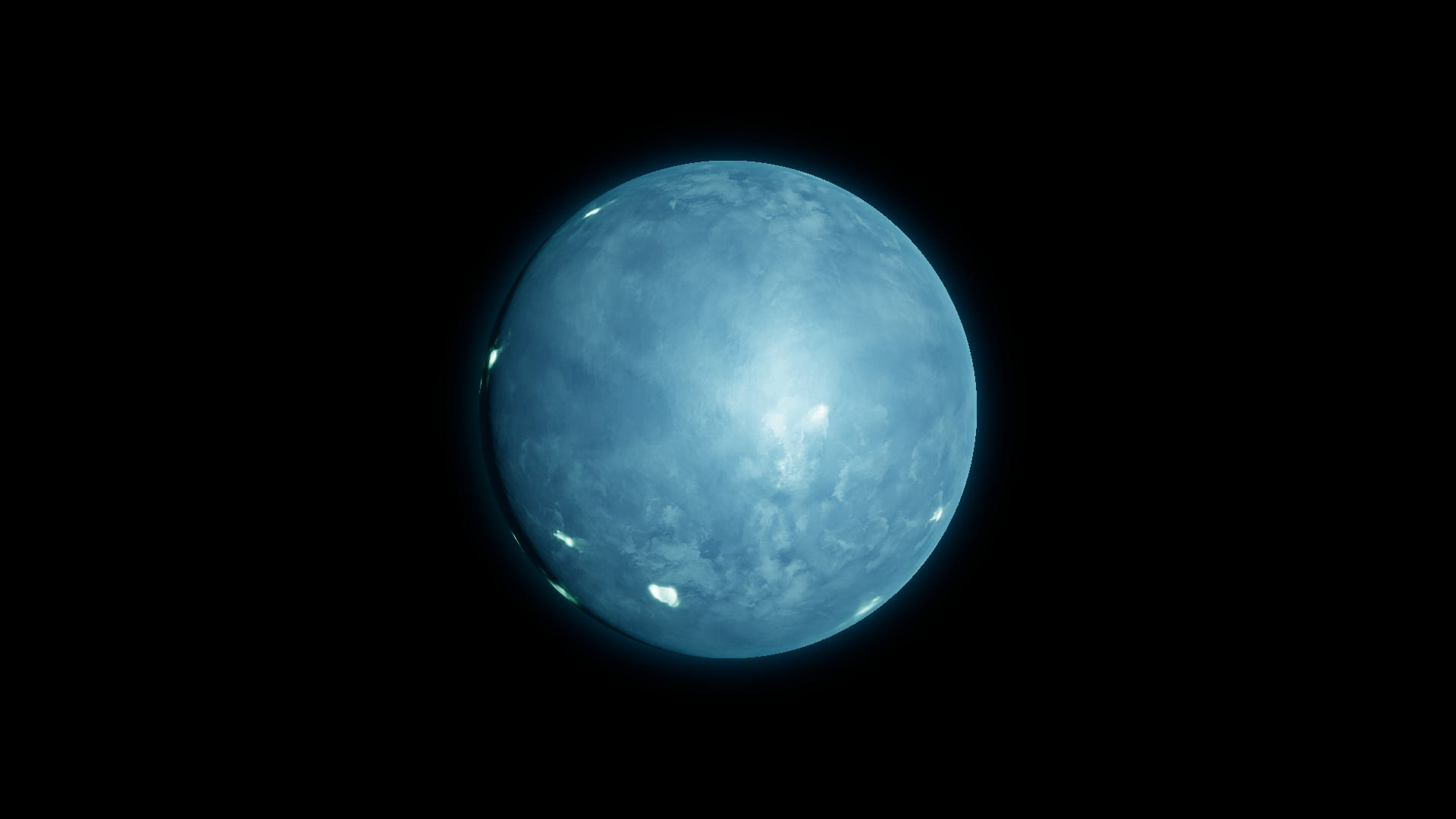
Before · Lightning Color at preset RGB (0.566, 1.000, 0.892), at an active phase 0.24 s into the effect.
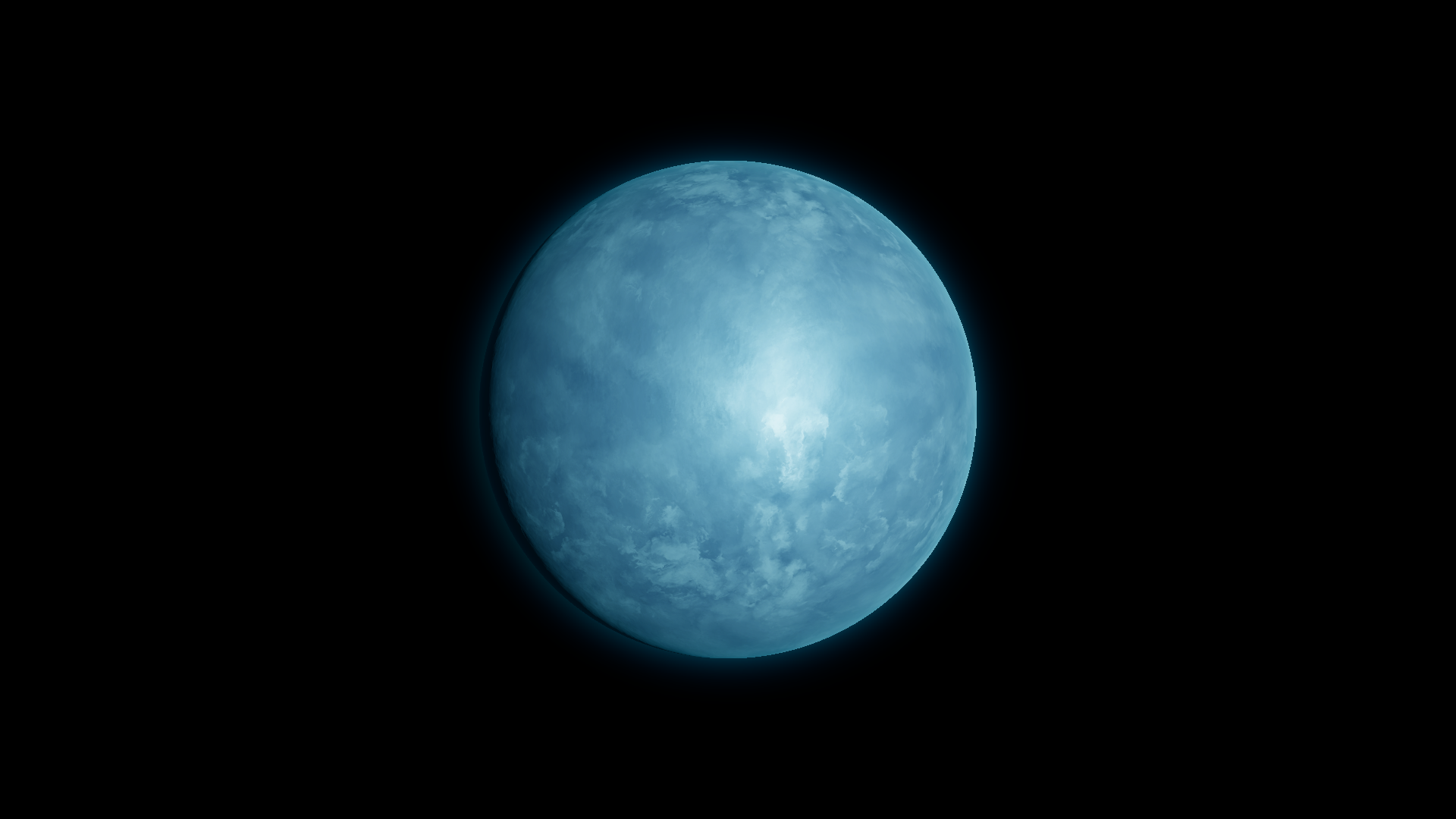
After · Lightning Color RGB (0, 0, 0) at the same phase. The comparison isolates flash color.
Before at full size · After at full size
See Lava shader settings and Thunderstorm shader settings for the material controls.