

Origins and restoration
An origin is one stored world position and world rotation for a camera slot. Use it as a return pose while exploring the scene. Each slot has one origin; storing again replaces it. There is no named preset library or automatic snapshot history.
Before using these actions, assign the intended camera, save a scene copy, and verify the Inspector target. Auto setup does not capture origins.
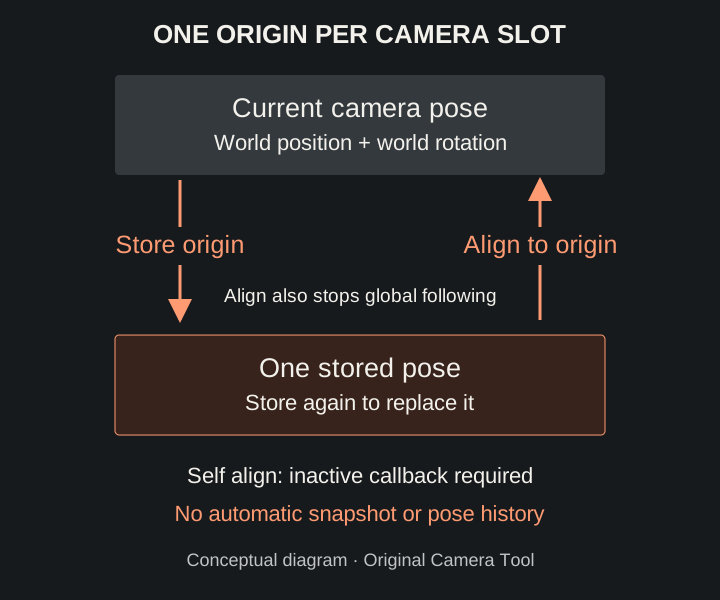
Conceptual diagram, not Unity UI. Primary and Secondary each have their own stored pose.
Store a pose
Section titled “Store a pose”- Stop following and position the assigned camera manually, or navigate while active to the pose you want to keep.
- Click Store origin under the correct camera slot.
- Check Stored origin: > Position and Rotation. Position is in world space; Rotation is displayed in Euler degrees.
- If following is still active, stop before further Scene navigation if you want the camera to remain at that pose.
- Save the scene to retain deliberate Edit Mode changes.
Expected result: the slot now holds the camera’s current world pose. Store does not activate or stop the tool. It does not keep the previous origin. Do not rely on Undo to recover it.
You can edit the stored Position and Rotation directly. These fields edit the return pose, not the live camera Transform. A fresh component has no captured origin, even if the Inspector displays zero values. Store a real pose before restoring.
Restore a pose explicitly
Section titled “Restore a pose explicitly”- Verify the camera reference and stored values. If you have reassigned the camera, store its intended return pose first.
- Click that slot’s Align to origin.
- Check the camera’s resulting world position and rotation.
- If both cameras need restoring, click Align to origin under the other slot too.
- Save only after inspecting the result.
Expected result: the clicked camera receives both stored transform channels, and global Enabled becomes false. The other camera is not automatically restored, even if its Self align is on. Restoration is independent of the Position/Rotation follow flags. Do not rely on Undo to reverse Align.
Self align when stopping
Section titled “Self align when stopping”- Store a valid origin for each camera that should return automatically.
- Enable Self align in that slot’s Camera settings:.
- Activate and deactivate through the configured key in Scene View.
- Inspect the returned pose; use the explicit Align button if you need direct restoration.
The Scene stop path invokes the inactive callback, which restores the full pose of each assigned slot with Self align on. A rotation-only Secondary can therefore have its position restored too.
This behavior is conditional on that callback running. Unchecking the custom Enabled checkbox skips it. Component disable, deletion, scene unload, and Play Mode exit are not guaranteed restoration paths. See Editor lifecycle.
Match Scene to Game when starting
Section titled “Match Scene to Game when starting”- Assign Primary and keep a Scene View available.
- Place Primary at the current pose from which you want Scene navigation to begin.
- Enable Primary Match Scene to Game.
- Focus Scene View and activate with the configured key.
- Refocus Scene View if necessary, then navigate.
The active callback aligns Scene View to Primary’s current pose, not its stored origin, and requests perspective viewing. It does not copy lens settings. There is no Secondary Match Scene control.
Use the Scene View key for this operation. The Inspector Enabled checkbox skips Match Scene to Game.
Saved data and Play Mode
Section titled “Saved data and Play Mode”Origins are saved with the component. Save the scene after changing them, and check the saved values when working with prefab instances. Saving and Undo are separate operations; do not rely on Undo to recover a replaced origin.
World-space restoration also matters for parented cameras: the stored pose is not a local offset that automatically follows a moved parent. Do not assume Play-time origin edits survive exiting Play Mode. Play Mode exit can return the camera to its pre-Play pose rather than its stored origin. Use Align to origin when you need to restore that origin explicitly.
Continue with Inspector reference or practical examples.