

Gas planets and rings
Use Planet_Gas_01 from Assets/FORGE3D/Planets HDRP/Prefabs. Its Planet_Ring_01 child uses Gas/Materials/Planet_Ring_Gas_01.mat. Start with this Transparent Ring material and the centered ring mesh.
Color the ring
Section titled “Color the ring”- Frame the ring from a slight angle so the front arc, the gaps and the far side of the disc are easy to see.
- Duplicate the ring material and assign the copy to the child’s Mesh Renderer. Leave the Surface Type, blend and depth settings on the copy as supplied.
- Use Ring Tint RGB for color. Lower the tint’s alpha for a fainter ring. Look for both a color shift and gaps between bands.
- If you replace Detail Map, keep its radial layout. The shader samples across the texture width at the center row. RGB colors the bands, and red also controls opacity. Reserve texture alpha for a separate Ring Shadow material. Keep Ring Size and Ring Offset at their preset values until the map is working.
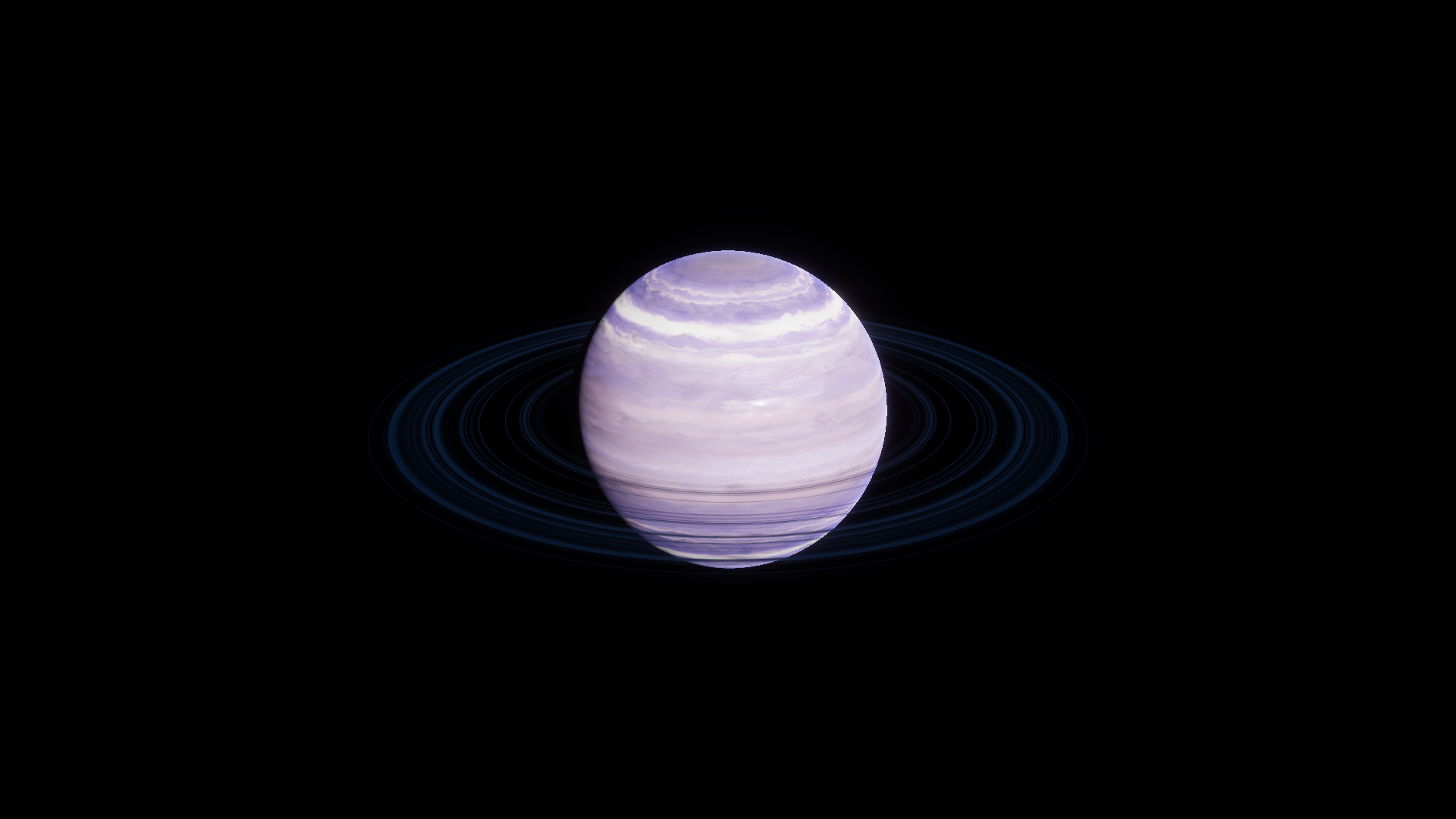
Gas 01 with Ring Tint changed from white to RGBA (0.24, 0.48, 0.85, 1). The body material is unchanged.
Shade the ring
Section titled “Shade the ring”The ring is a Lit surface. Light direction and the ring’s Specular and Smoothness shape its highlights. A separate built-in shadow darkens a region on the ring based on the Directional Light’s direction. Compare it from an angle where the ring passes close to the planet.
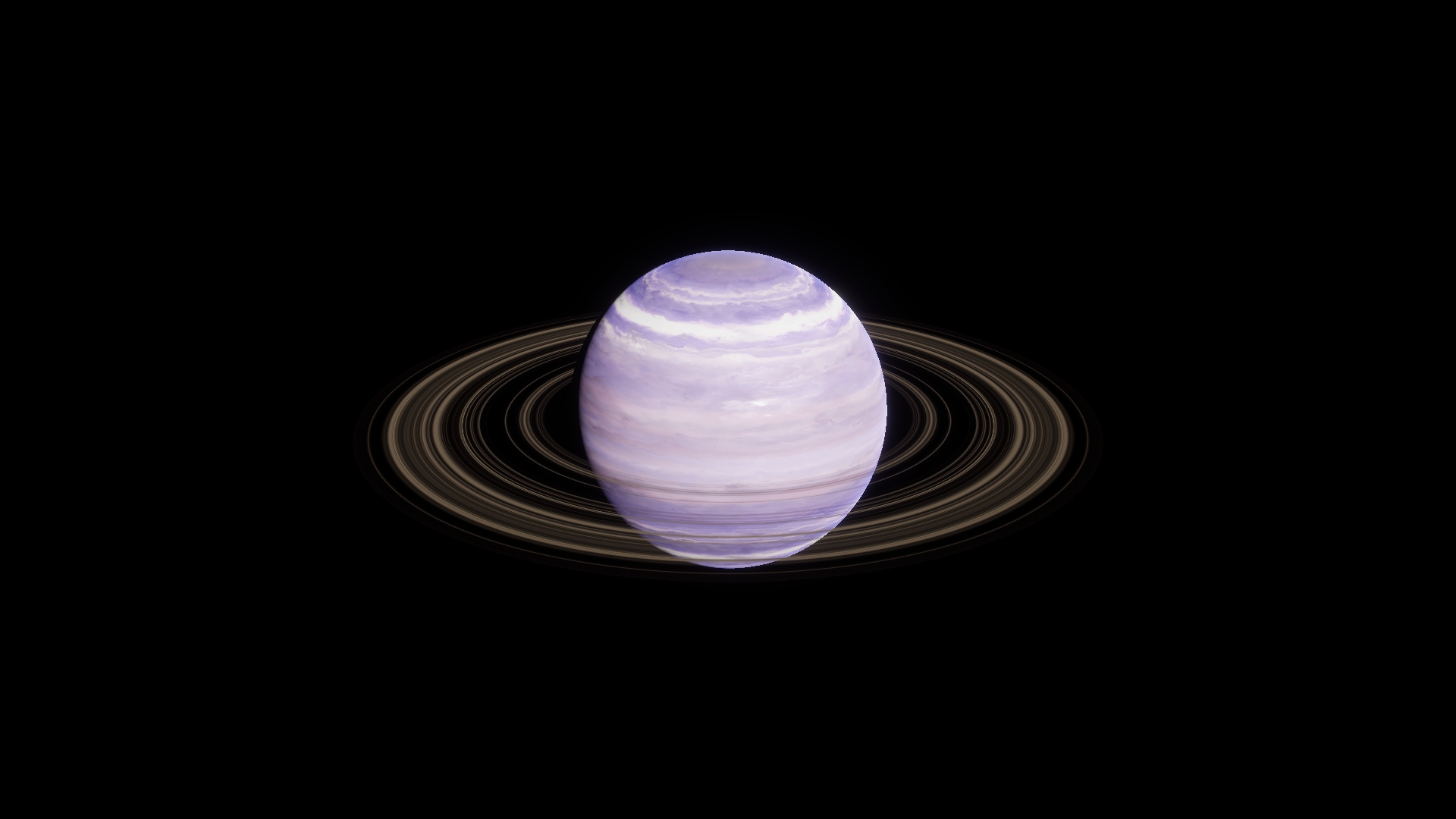
Before · Shadow Vertex 1.
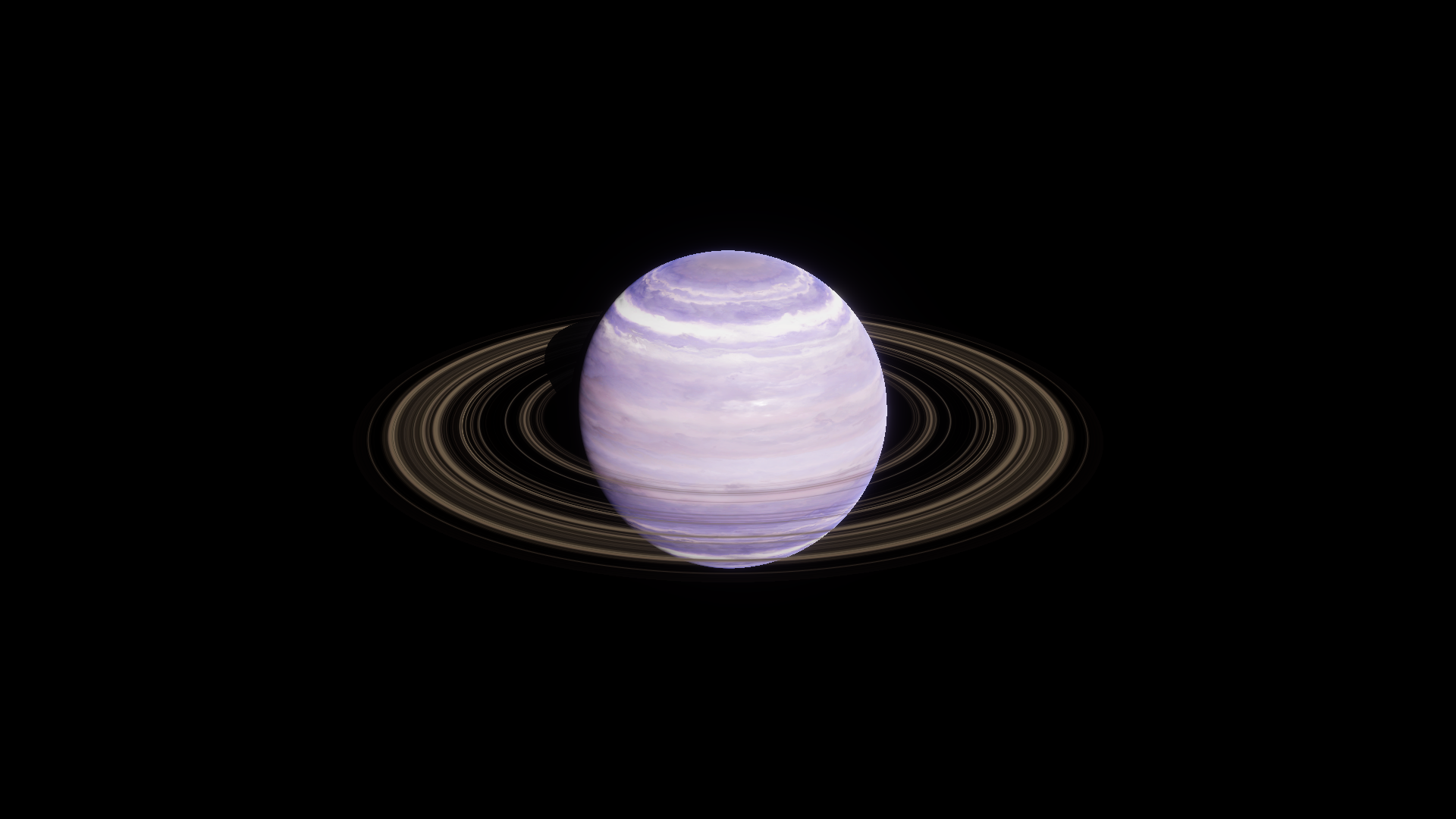
After · Shadow Vertex 0.5. Look for the dark wedge near the body’s left edge.
Before at full size · After at full size
Add a shadow-only ring in the Editor
Section titled “Add a shadow-only ring in the Editor”Use a second ring renderer when you want masked bands projected onto an HDRP Lit receiver.
- Keep the visible ring on its Transparent Ring material. Duplicate
Planet_Ring_01in place and create a FORGE3D/Planets HD/Ring Shadow material for the copy. Use the same radial texture and matching Ring Size and Ring Offset. - Enable Alpha Clipping, set Clip to
1and start with Threshold0.25. Confirm the texture imports with its alpha channel. - Set the copy’s Mesh Renderer > Cast Shadows to Shadows Only. Enable shadows on the Directional Light. Frame an HDRP Lit receiver within range.
- In the effective Volume, add Shadowing > Shadows and enable its Max Distance override. Extend it as needed to include the receiver from your camera. Toggle the auxiliary renderer to check that the projected bands change.
- Keep a reference to the alpha-clipped material in your build and check the projected shadow in your Player.
If the bands disappear, check the distance, light shadows and receiver first. If the cast shadow is solid, check Alpha Clipping and the alpha channel. See Ring Transparent for material controls and Ring Shadow for the mask preview.