

Surface appearance and clouds
Start with surface colors and detail, then add clouds back over the result. Terrestrial, Oceanic and Sand have cloud controls on the surface material; their atmospheric glow uses separate shell materials.
Shape a terrestrial surface
Section titled “Shape a terrestrial surface”- Copy
Terrestrial/Materials/Planet_Terrestrial_01.matfromAssets/FORGE3D/Planets/and assign it to the surface. - Temporarily reduce Clouds Output to inspect the ground and ocean.
- Choose Water Deep Color and Water Shallow Color. Tune Water Detail Factor and Water Detail Boost to distribute those tones.
- Choose Desert Color, Vegetation Color and Mountain Color. Adjust one layer’s Coverage, then its Factors, before moving to the next.
- Restore clouds and inspect the combined result.
Land Mask red chooses water versus land; green shapes shores. Height Map supplies terrain detail and layer masks. These textures determine where colors can appear, so a covered layer may not respond visibly to color alone. Terrestrial lists every setting. For an all-water look, Oceanic provides a specialized water surface; its exposed land and shore settings are bypassed in this URP shader.
Change cloud contribution and shadow separately
Section titled “Change cloud contribution and shadow separately”On the surface material, Clouds Output changes the visible cloud contribution. Cloud Shadows shapes the darker mask sampled beneath it. To reveal the surface without either contribution, compare both controls with zero independently.
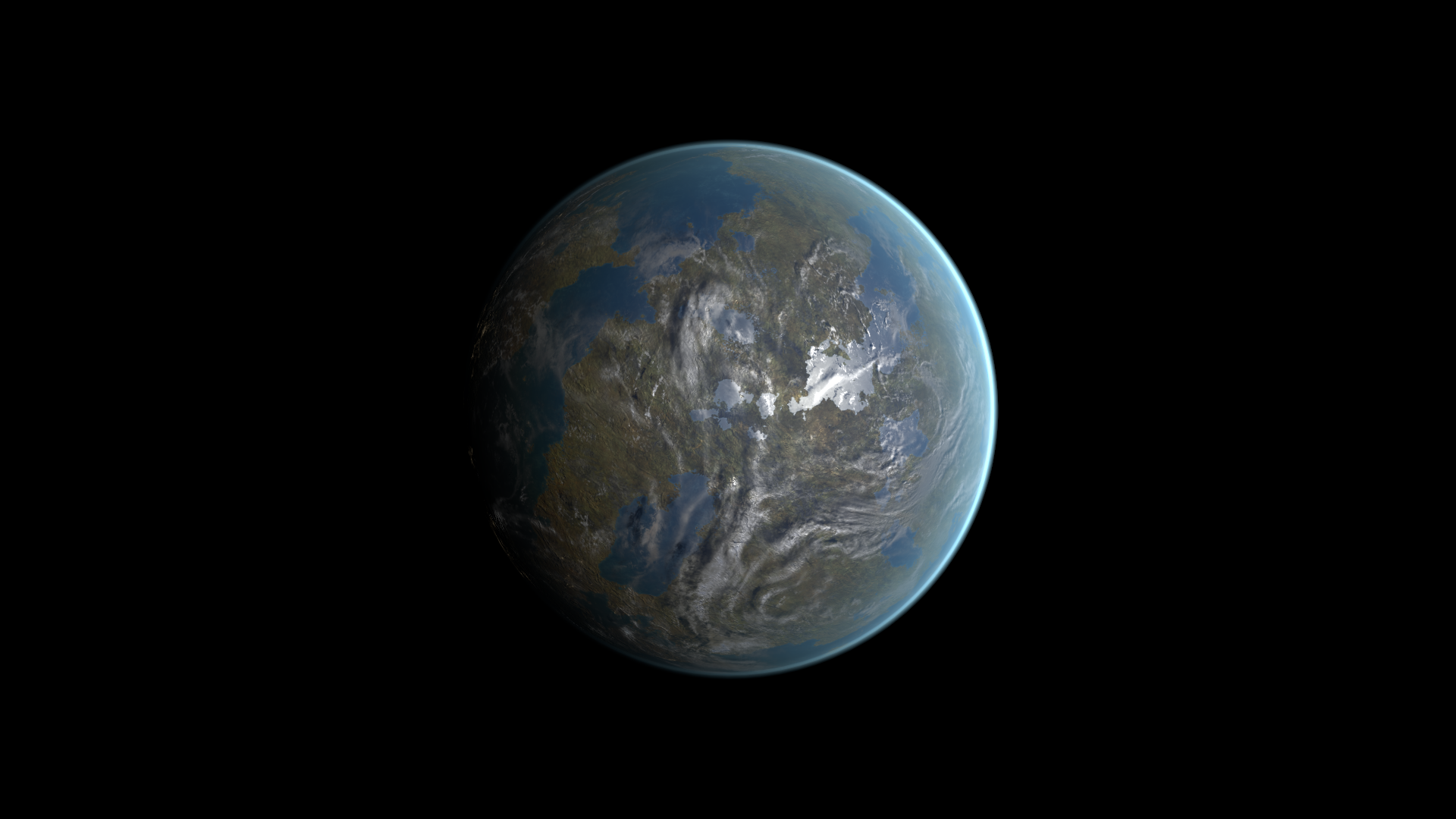
Before: Clouds Output = 0.279.
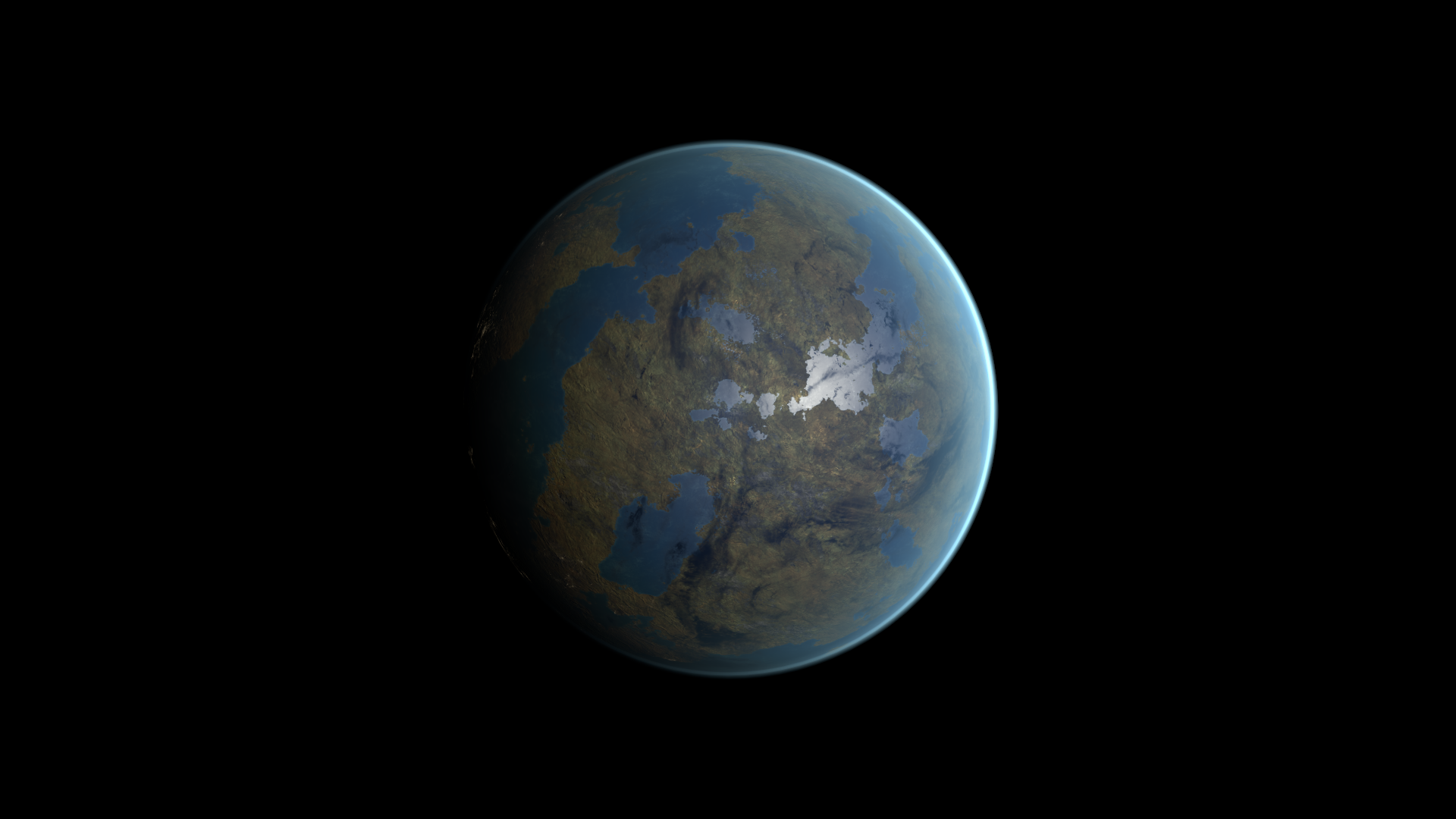
After: Clouds Output = 0. The underlying surface is more exposed; Cloud Shadows has not been changed in this pair.
Clouds Height offsets the shadow sampling to create apparent separation. It does not lift a cloud mesh. Adjust it after choosing the light direction, then inspect the shadow on both bright and dim parts of the planet.
Animate clouds without rotating the planet
Section titled “Animate clouds without rotating the planet”- Keep the supplied Clouds Top, Clouds Middle and Gradient textures.
- Enter Play Mode. Adjust Clouds Top Speed for pole rotation and Clouds Middle Speed for the middle layer’s panning.
- Use small signed changes within the Inspector sliders; zero stops that layer’s motion.
- Inspect the poles and the equator. Change Clouds Blend Weight gradually only if you need a different transition between the maps.
The pole and middle maps use different UV channels on the supplied mesh. Their blend creates a continuous cloud layer; it does not represent two physical cloud shells. Clouds Tint sets their color. Terrestrial and Oceanic also expose Clouds Specular Lerp and Clouds Smoothness Lerp for their highlight response. Sand adds Cloud Boost for the dust contribution.
Choose a different kind of surface
Section titled “Choose a different kind of surface”- Use Moon for triplanar rocky textures and map-specific highlight masks.
- Use Ice for a depth-shaped three-color ramp.
- Use Lava for molten masks, emissive color and animated distortion.
- Use Gas for bands, polar detail and separate band/distortion motion.
- Use Sand for desert layers and dusty clouds.
- Use Thunderstorm for turbulent cloud detail and time-varying lightning.
Try the short Practical workflows before replacing maps or changing several mask controls together.