

Sand
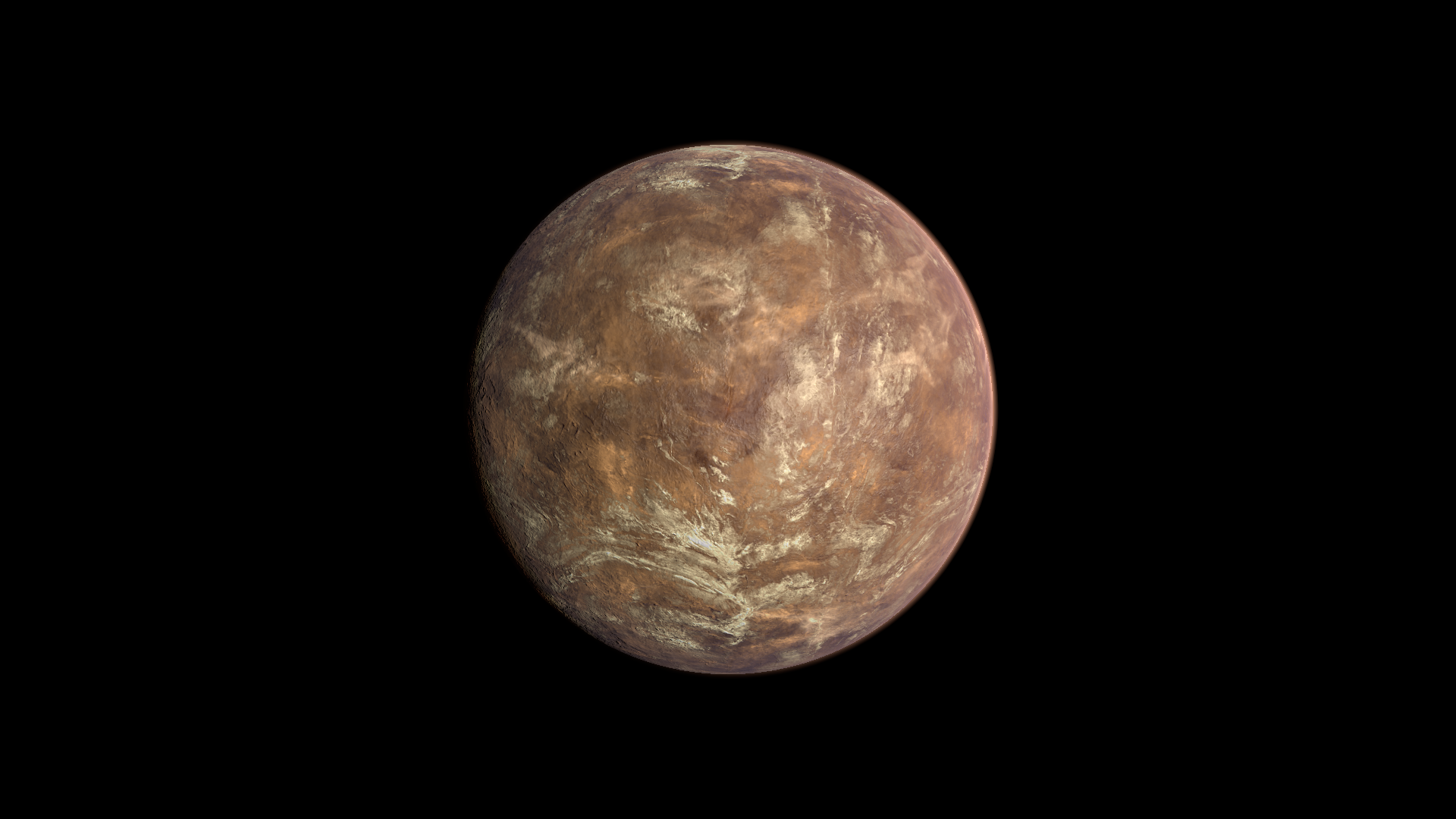
Create desert terrain beneath an animated layer of dusty clouds.
Visual example
Section titled “Visual example”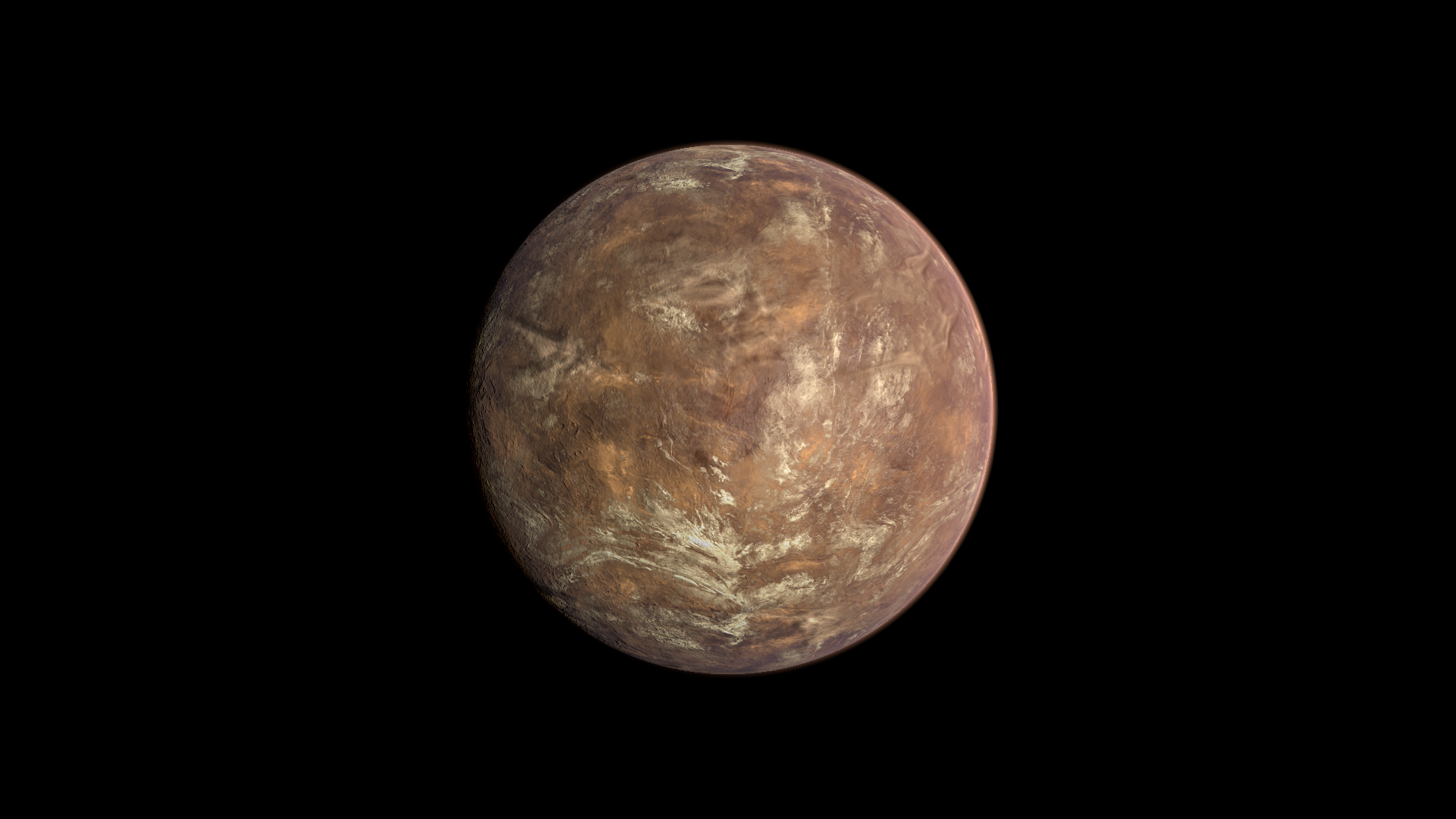
Where to find it
Section titled “Where to find it”Shader menu: FORGE3D/Planets HD/Sand. Start with Assets/FORGE3D/Planets/Sandstorm/Planet_Sand_01.prefab.
Material: Assets/FORGE3D/Planets/Sandstorm/Materials/Planet_Sand_01.mat. Select the relevant Mesh Renderer > Materials slot, duplicate that material into your own folder, and assign the copy before editing. See material ownership.
Main settings
Section titled “Main settings”The Project folder is Sandstorm, while the shader and surface materials use Sand. Dust is part of the surface material. Clouds Output and Cloud Shadows are separate: removing visible dust does not automatically remove the shadow contribution.
Lighting and rim
Section titled “Lighting and rim”| Inspector setting | Property ID | Use and visual effect |
|---|---|---|
| Scatter Map | _ScatterMap | Color lookup for the view/light-dependent surface shading. Retain the supplied lookup when first changing the palette. |
| Scatter Color | _ScatterColor | Tints the surface scatter contribution. A dark color can strongly reduce the visible surface. |
| Scatter Boost | _ScatterBoost | Strength of the scatter contribution. Tune with Scatter Color rather than compensating only with light intensity. |
| Scatter Indirect | _ScatterIndirect | Adds a floor to the scatter modulation. Raise it cautiously if the surface becomes too dark outside the bright region. |
| Scatter Stretch | _ScatterStretch | Scales the lookup coordinates, changing the spread of the shading transition. Tune with Scatter Center Shift. |
| Scatter Center Shift | _ScatterCenterShift | Moves the lookup transition. Adjust to reposition the scatter band without changing the planet Transform. |
| Specular Color | _SpecularColor | Tint of the highlight contribution. Check alpha as well as RGB when a highlight adjustment appears ineffective. |
| Specular | _Specular | Strength of the surface highlight, shaped by the shader’s texture masks. Adjust under the intended scene light. |
| Smoothness | _Smoothness | Surface highlight smoothness. Higher values generally concentrate reflections; texture and cloud masks can reduce the effect. |
| Frensel Mult | _FrenselMult | Strength of the rim contribution. At zero, changing its color or power can have no visible effect. |
| Fresnel Power | _FresnelPower | Concentrates the view-dependent rim. Increase to narrow its response toward grazing views; compare with Frensel Mult enabled. |
| Fresnel Color | _FresnelColor | Color of the view-dependent rim contribution. Its strength also depends on Frensel Mult and Fresnel Power. |
Surface and effect shape
Section titled “Surface and effect shape”| Inspector setting | Property ID | Use and visual effect |
|---|---|---|
| Detail Map | _DetailMap | Fine surface pattern and masks. Its channel use depends on the shader; retain the supplied map while tuning the material. |
| Detail Tiling | _DetailTiling | Texture repetition for detail. Increase for finer repeated detail; tune its paired motion control separately. |
| Base Color | _BaseColor | Underlying terrain color. Desert, vegetation and mountain layers can cover it, so first inspect the active masks. |
| Desert Color | _DesertColor | Color of the desert layer. Coverage, mask textures and overlying layers determine where it is visible. |
| Desert Coverage | _DesertCoverage | Threshold controlling the extent of the desert layer. Compare small changes with the supplied mask and Desert Factors. |
| Desert Factors | _DesertFactors | Sharpness of the desert layer transition. Higher values make its threshold harder; tune after Coverage. |
| Albedo Boost | _AlbedoBoost | Multiplier for Sand’s terrain color before the cloud contribution. Increase to lift the ground while keeping Cloud Boost separate. |
| Mountain Color | _MountainColor | Color of the mountain layer. Coverage, mask textures and overlying layers determine where it is visible. |
| Mountain Coverage | _MountainCoverage | Threshold controlling the extent of the mountain layer. Compare small changes with the supplied mask and Mountain Factors. |
| Mountain Factors | _MountainFactors | Sharpness of the mountain layer transition. Higher values make its threshold harder; tune after Coverage. |
Detail and mapping
Section titled “Detail and mapping”| Inspector setting | Property ID | Use and visual effect |
|---|---|---|
| Normal Map | _NormalMap | Small surface relief through lighting. Keep a compatible normal texture and tune Normal Scale before replacing the map. |
| Normal Scale | _NormalScale | Strength of normal-map relief. Increase for stronger small shadows and highlights; it does not raise terrain geometry. |
| Normal Tiling | _NormalTiling | Texture repetition for normal. Increase for finer repeated detail; tune its paired motion control separately. |
| TriplanarFalloff | _TriplanarFalloff | Sharpness of the blend between projected texture directions. Use a positive value and inspect transitions around the globe. |
Clouds
Section titled “Clouds”| Inspector setting | Property ID | Use and visual effect |
|---|---|---|
| Gradient | _Gradient | Blend mask joining the pole and middle cloud maps. Keep the supplied gradient when tuning cloud motion. |
| Clouds Top | _CloudsTop | Cloud texture used around the poles. Its rotation is controlled by Clouds Top Speed. |
| Clouds Middle | _CloudsMiddle | Cloud texture across the middle of the globe, using a separate UV channel. Clouds Middle Speed controls its panning. |
| Clouds Blend Weight | _CloudsBlendWeight | Exponent shaping the blend between pole and middle clouds. Change gradually and inspect the join at high latitudes. |
| Clouds Top Speed | _CloudsTopSpeed | Signed rotation rate for the pole cloud map. Zero stops this motion; inspect in Play Mode. |
| Clouds Middle Speed | _CloudsMiddleSpeed | Signed panning rate for the middle cloud map. Tune separately from pole motion in Play Mode. |
| Clouds Height | _CloudsHeight | Offset used to sample the cloud shadow. Changes the apparent separation of clouds and shadow without adding shell geometry. |
| Clouds Tint | _CloudsTint | Color of the cloud layer. Its visibility also depends on Clouds Output and the cloud maps. |
| Cloud Shadows | _CloudShadows | Shapes the texture-based shadow mask beneath clouds. Compare against zero to see its contribution; it is not a linear opacity slider. |
| Clouds Output | _CloudsOutput | Visible cloud contribution. Zero removes that contribution; Cloud Shadows is a separate control. |
| Cloud Boost | _CloudBoost | Extra multiplier for Sand’s tinted cloud contribution. Reduce if dust obscures too much terrain detail. |
Advanced settings
Section titled “Advanced settings”Desert and mountain layers can cover Base Color. Adjust their coverage and transition factors before changing Detail Map. Cloud Boost affects the dusty contribution while Albedo Boost affects the ground; use them separately to balance terrain visibility. For mapping and rendering details, see Technical reference.
Practical example
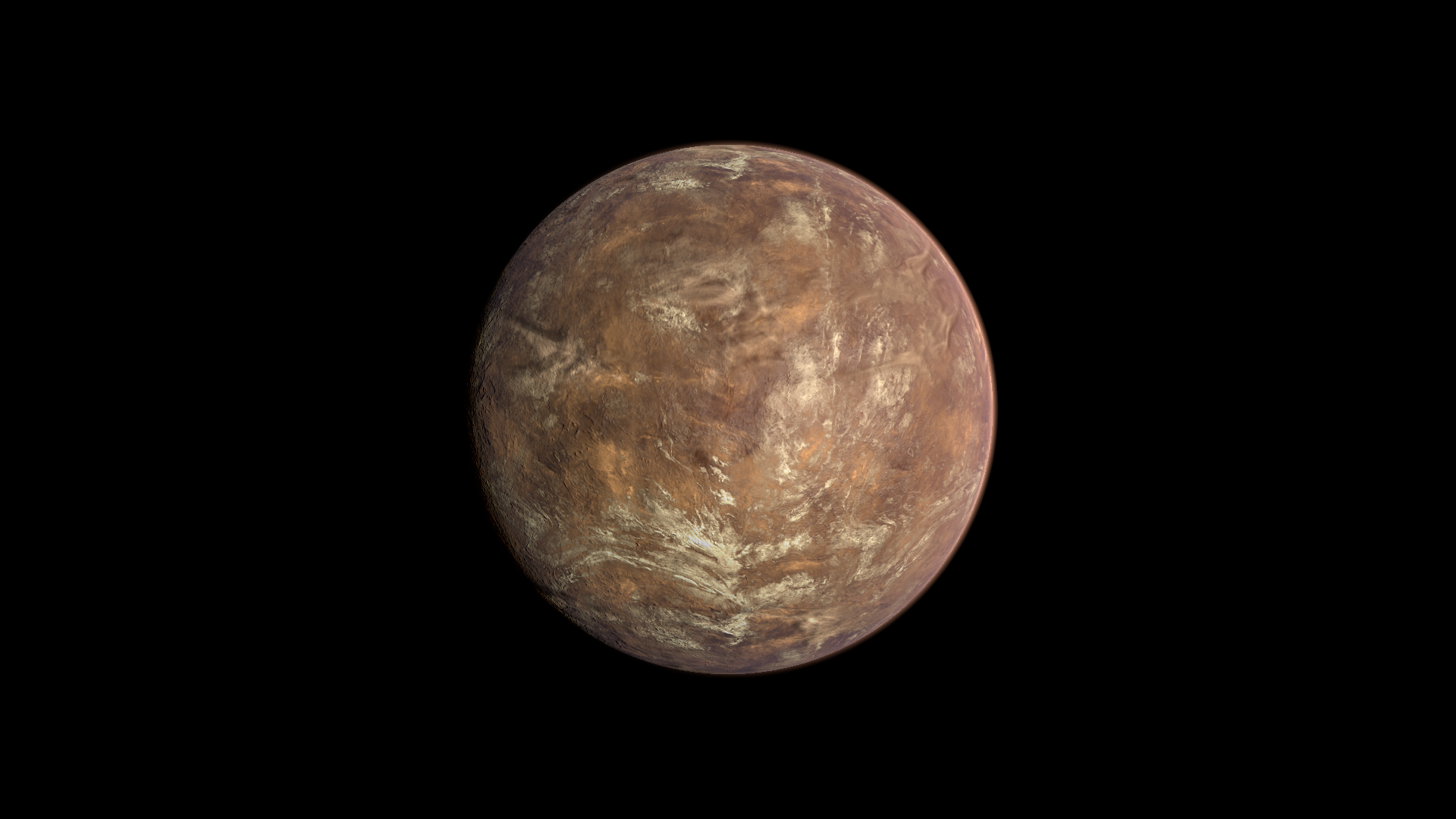
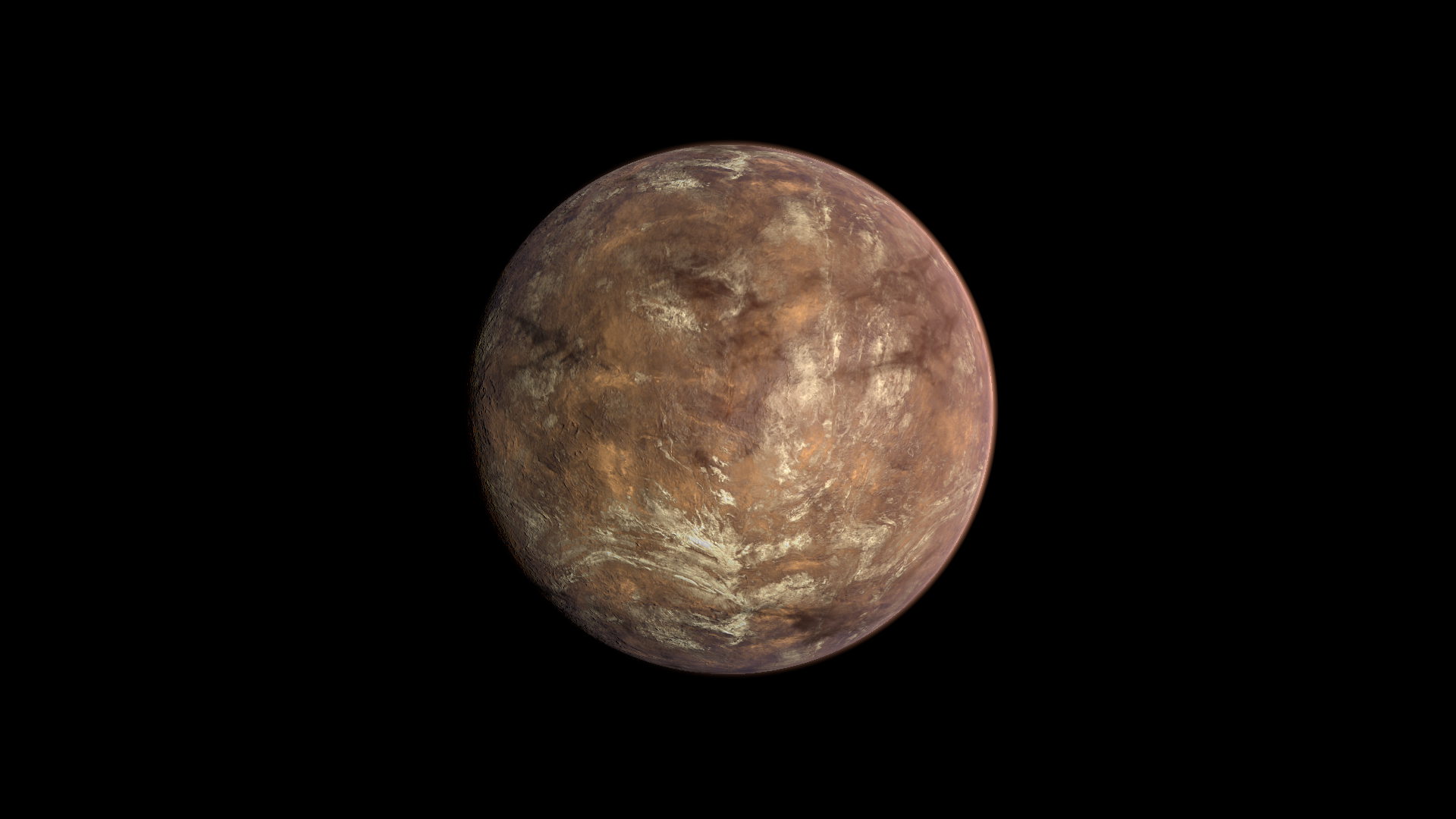
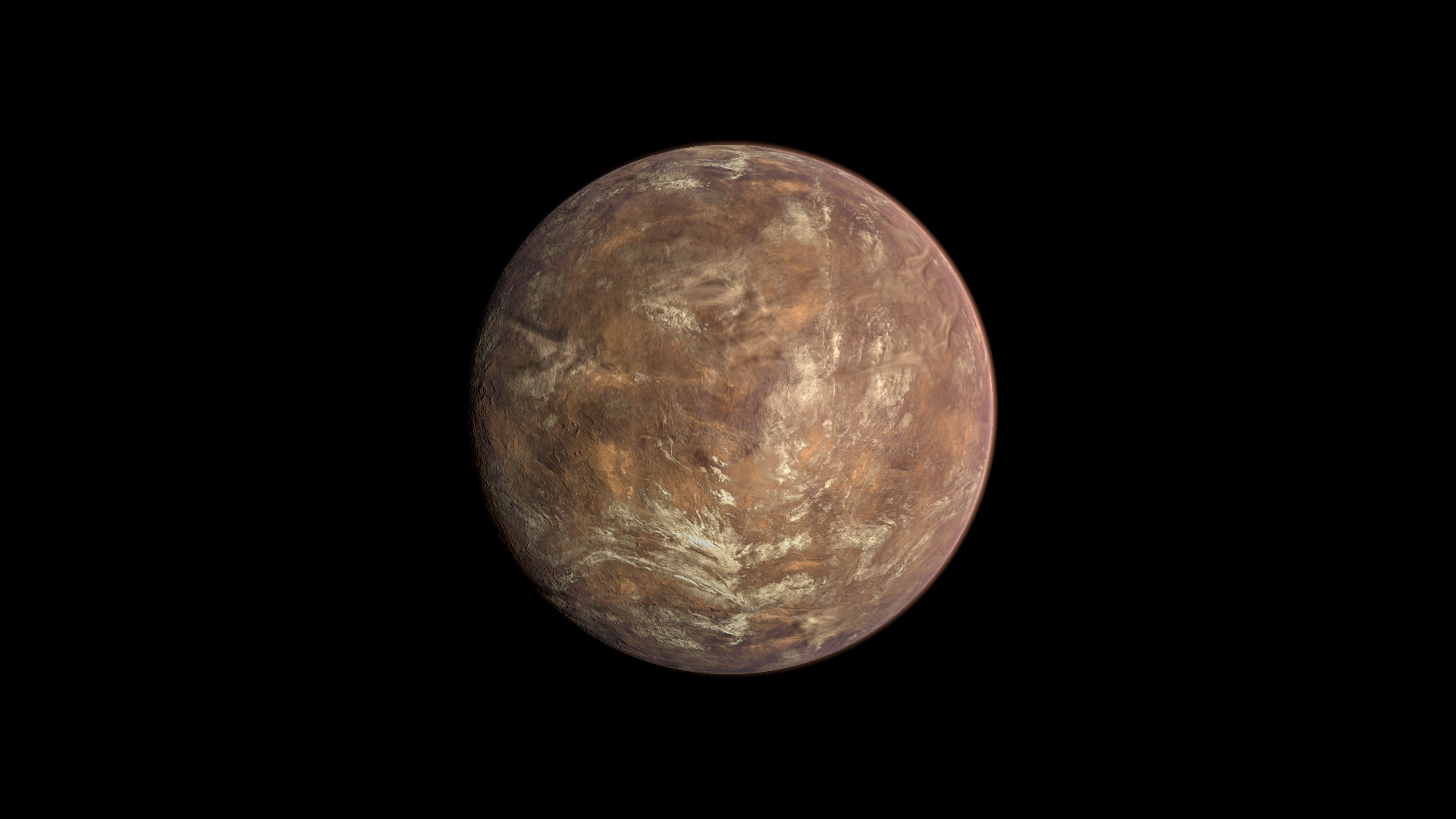
Section titled “Practical example”Duplicate Planet_Sand_01.mat. Compare Clouds Output = 1 and 0 to reveal the desert below the dust. Restore the clouds and compare Cloud Shadows = 0.782 and 0 to choose the amount of shadow shaping independently.
Setting comparisons
Section titled “Setting comparisons”These examples keep the camera, light and other material settings fixed within each pair. Before appears first and After second. Values describe these examples, rather than a required range.
Clouds Output comparison
Section titled “Clouds Output comparison”Before: 1; After: 0
Look at how much of the underlying surface is revealed when the visible cloud contribution is removed.
Before — Clouds Output = 1
After — Clouds Output = 0
Cloud Shadows comparison
Section titled “Cloud Shadows comparison”Before: 0.782; After: 0
Look at the dark shaping beneath cloud regions, independently of the visible cloud color.
Before — Cloud Shadows = 0.782
After — Cloud Shadows = 0
Related topics
Section titled “Related topics”Shader guide · Materials and customization · Lighting and effects · Practical workflows · Troubleshooting