

City lights and the night side
Use the Terrestrial body material to add city glow where the dark side faces the camera. The city pattern depends on the supplied city maps, the terrain and the direction of the light.
Reveal the cities
Section titled “Reveal the cities”- Start from
Planet_Terrestrial_01in the Quick Start. Duplicate its body material and keep City Light Map, CityLight UV Map and CityLight Mask Map assigned. - Rotate the Directional Light to show mostly night with a narrow crescent. In the Quick Start shot, try light rotation
(12, 142, 0). Move the camera closer along its current viewing axis to see individual clusters. - Start at CityLight Population
0.93. Keep it positive. Try0.2for fewer visible clusters with the same maps. - Adjust the HDR CityLight Color on the material for the hue and brightness of the points. Compare at fixed Exposure.
If you need to restore the originals, look in Assets/FORGE3D/Planets HDRP/Terrestrial/Textures. Assign lights_01.png to City Light Map, lights_01_uv.png to CityLight UV Map, and lights_01_mask.png to CityLight Mask Map.
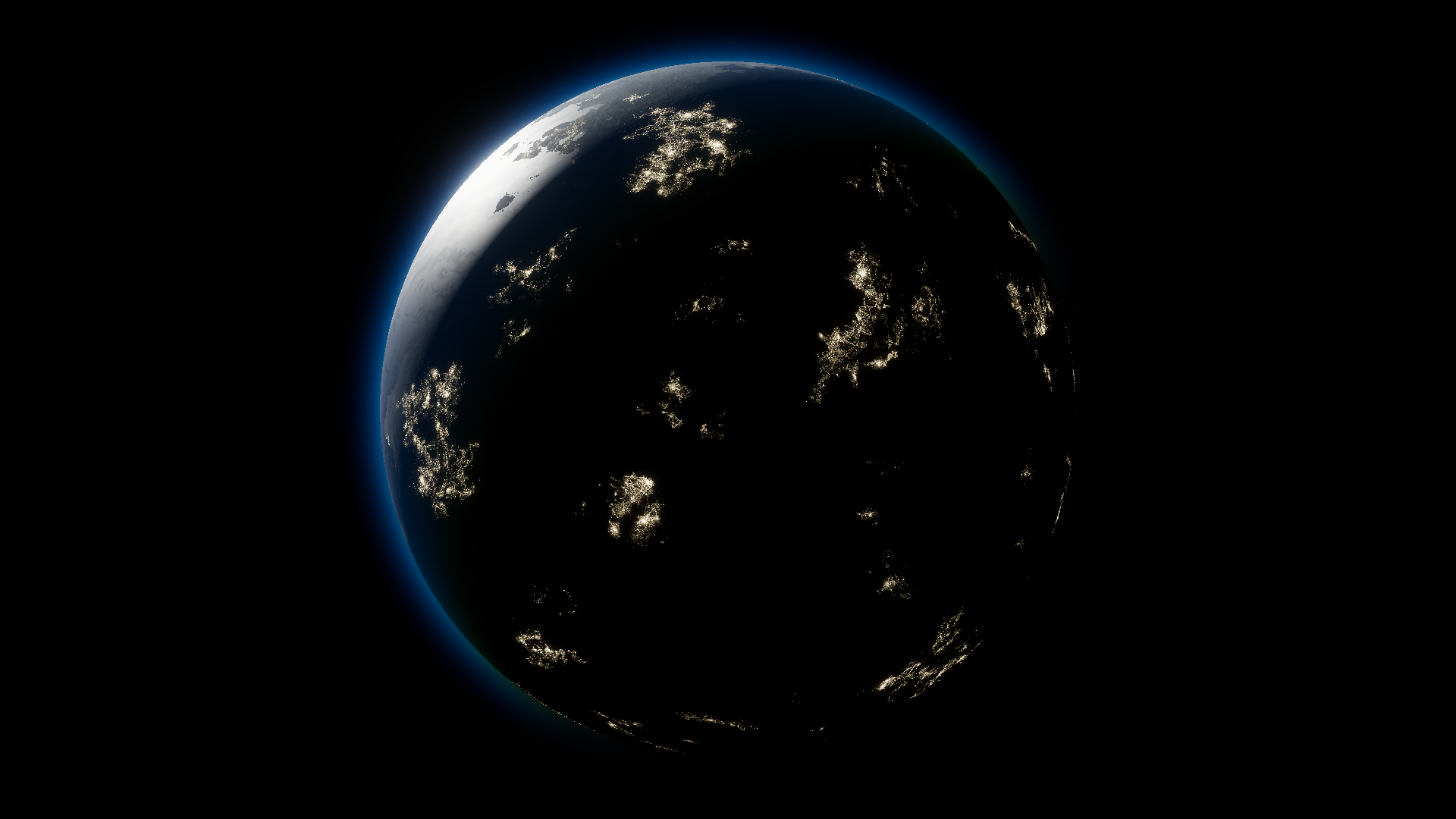
Before · CityLight Population 0.93.
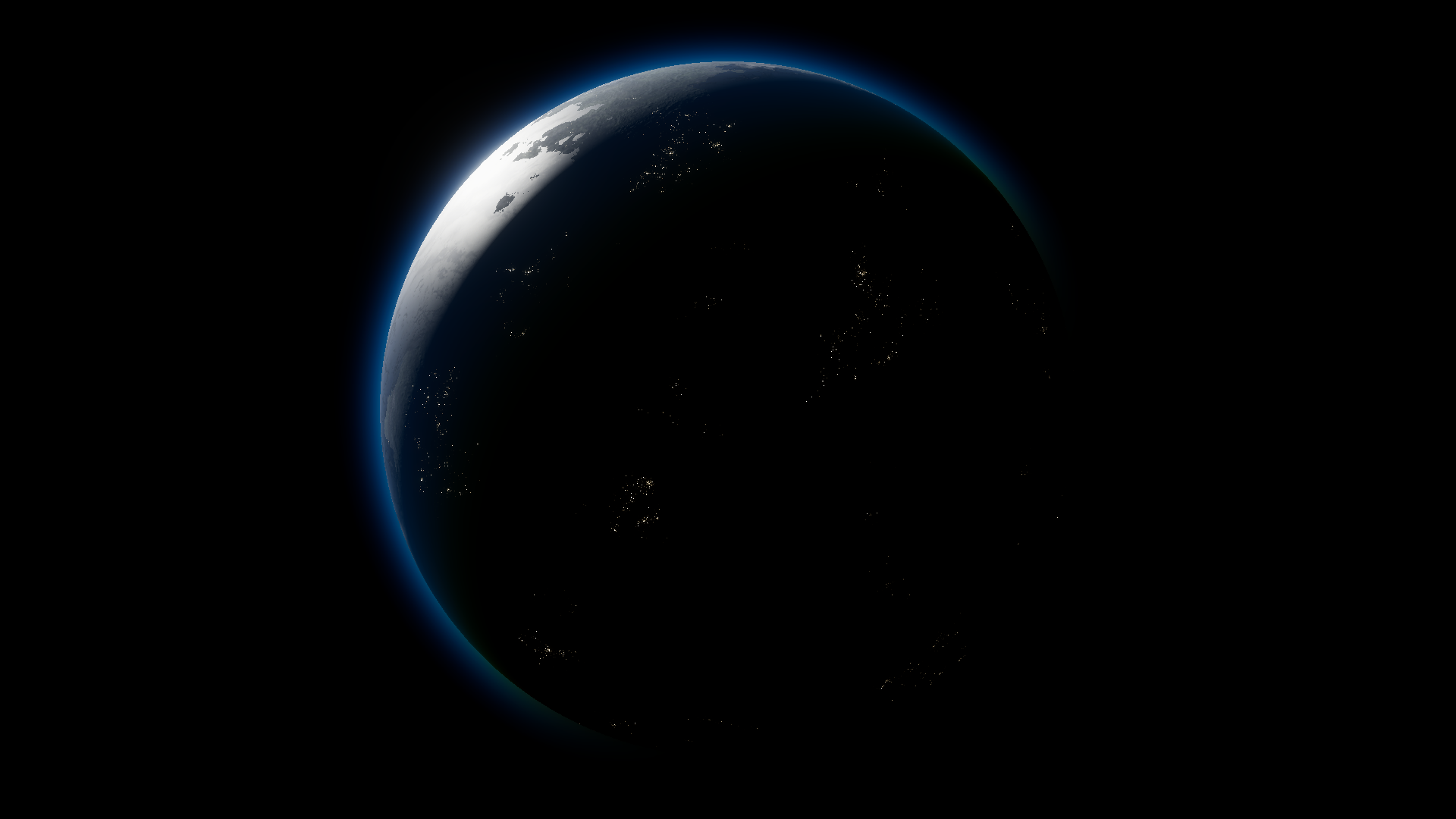
After · CityLight Population 0.2. Both close-ups use fixed Exposure at EV 0 and the same CityLight Color with eight times the preset RGB to make the points easier to see.
Before at full size · After at full size
If you see no lights, check that a dark hemisphere is facing you, the body is using the Terrestrial shader, the three maps are assigned and the HDR color is visible. Reduce sky fill if it hides the dark side, and compare the cloud settings separately. For replacement maps, see the texture channels.