

Rings, Sun and Corona
Use the supplied multi-renderer prefabs to keep related effects aligned. Rings and stellar layers have their own materials and respond differently from the planet surface.
Customize a gas ring
Section titled “Customize a gas ring”- Add
Assets/FORGE3D/Planets/Gas/Planet_Gas_01.prefabto a scene copy. - Find its ring renderer through Mesh Renderer > Materials and confirm the ring shader.
- Duplicate the assigned ring material into your own folder and assign the copy.
- Change Ring Tint RGB for color and alpha for opacity on Ring Transparent.
- Tune Ring Size and Ring Offset to redistribute radial texture bands. Resize the Transform only if you need to change the geometry itself.
- Rotate the Directional Light and tune Shadow Vertex and Shadow Penumbra to fit the artistic planet shadow.
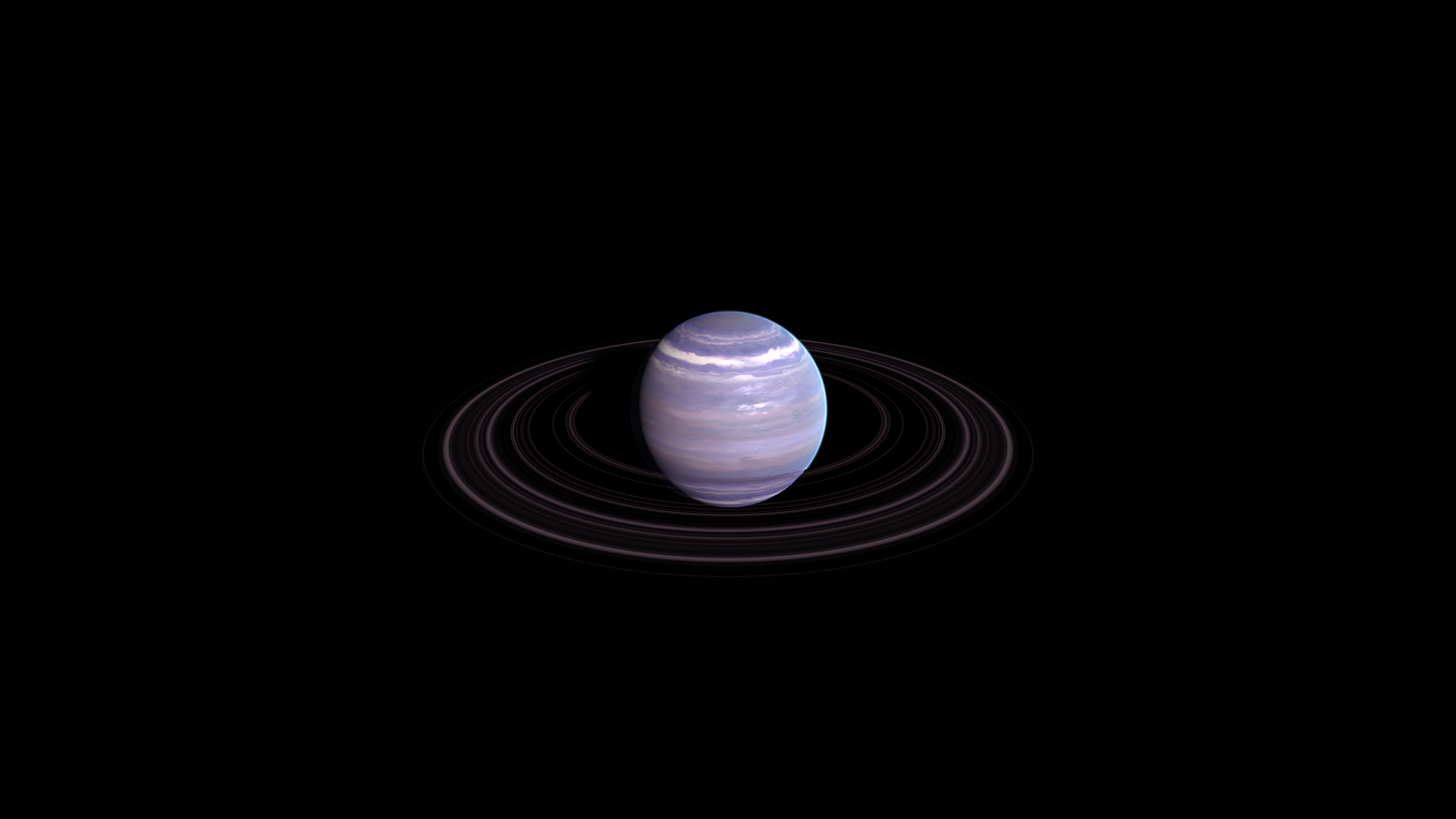
Ring Transparent uses Detail Map red for opacity, multiplied by Ring Tint alpha. Texture alpha does not serve that role. It also writes depth, so inspect overlap with atmospheric shells and other transparent objects. Avoid Ring Size = Ring Offset + 1, which collapses the radial mapping span.
Choose a ring shader
Section titled “Choose a ring shader”| Shader | Use | Important difference |
|---|---|---|
| Ring Transparent | Translucent bands with an artistic planet shadow | Red-channel opacity, tint alpha, depth writing |
| Ring Opaque | Solid radial bands in a custom composition | Opaque color with metallic/smoothness controls |
| Ring Shadow | Alpha-tested radial ring material | Visible white forward output; texture alpha controls clipping |
Opaque and Shadow materials are retained assets rather than complete supplied prefab configurations. Their reference images show custom compositions using a supplied ring mesh. Ring Shadow is not an invisible shadow-only renderer feature.
Coordinate Sun and Corona
Section titled “Coordinate Sun and Corona”- Add
Assets/FORGE3D/Planets/Sun/Sun_Blue.prefabto a scene copy. - Keep its child arrangement. Identify the materials using the Sun, Sun Corona and Atmosphere shader fields.
- Copy the materials you want to change and assign them to their original slots.
- On the surface, choose Cool, Warm and Hot as a coordinated palette. Preserve Hot alpha initially because it also affects flakes.
- Tune Surface Power and Flakes Power before increasing overall Boost.
- On the corona, match Corona Color, then tune Corona Falloff and Corona Boost for its radial shape.
- Enable Depth Texture on the URP asset and camera. Keep Depth Fade nonzero and check intersections at the final scene scale.
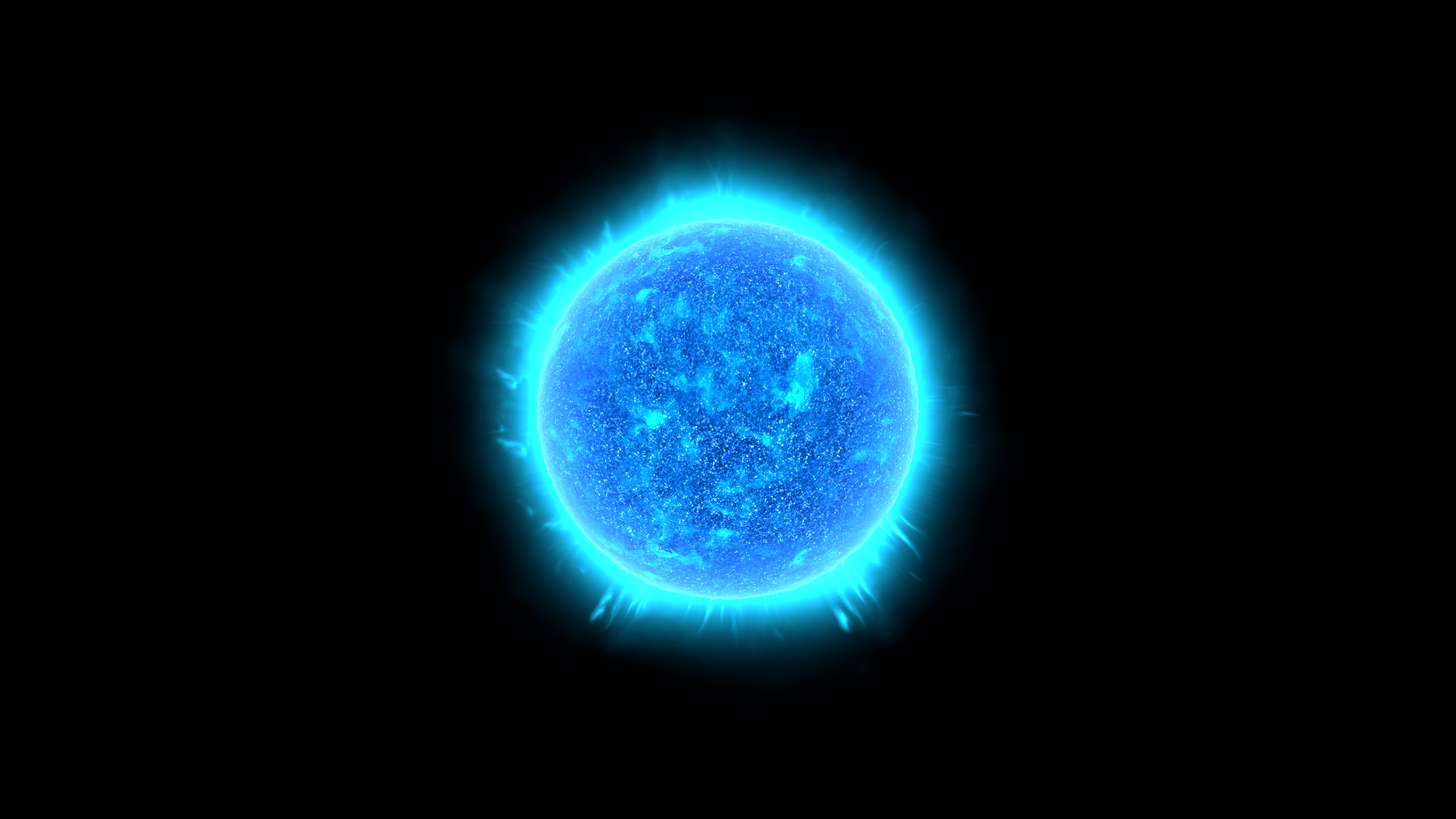
Composite stellar close-up at root scale 1200, matching the demo scale. Surface, Corona and Atmosphere remain separate editable layers.
Sun’s shader is unlit visual geometry. Add a Unity Light separately to illuminate planets. Root scale changes also affect the relationship with Corona’s world-unit Depth Fade; a tiny scene copy may need different values. Inspect actual overlaps in your scene instead of relying on depth fade as a universal seam fix.
For all controls and comparisons, see Sun and Sun Corona.