

Lighting, atmosphere and night effects
Light direction is part of the planet’s appearance. Choose it before fine-tuning scatter, atmospheric glow, cloud shadows or city lights.
Establish the main light
Section titled “Establish the main light”- Start with one white Directional Light, intensity 1, and a camera that shows both a lit hemisphere and a dark edge.
- Rotate the light to place the day/night boundary. Moving a Directional Light’s position does not move that boundary.
- Tune ambient lighting and environment reflections deliberately in Window > Rendering > Lighting > Environment. A bright sky or reflection environment can change the look considerably.
- Add additional lights only after the main composition is established.
The materials include artistic terms tied to the main light. Additional lights can affect lit surfaces without reproducing every atmosphere, cloud-shadow or night-side term independently. A visible Sun prefab is geometry, so use a separate Unity Light to illuminate the scene.
Shape the atmosphere
Section titled “Shape the atmosphere”- Select an atmosphere shell renderer and duplicate its assigned material. Confirm Shader = FORGE3D/Planets/Atmosphere.
- Choose Scattering Color for the atmospheric arc, then tune Scattering Intensity.
- Use Scattering Factor to concentrate the arc and Scattering Offset to adjust its limb boundary.
- Set Glow Color and Glow Intensity for the glow contribution. Tune Glow Factor and Glow Offset separately.
- Adjust Light Exp and Light Multiply after the light direction is fixed.
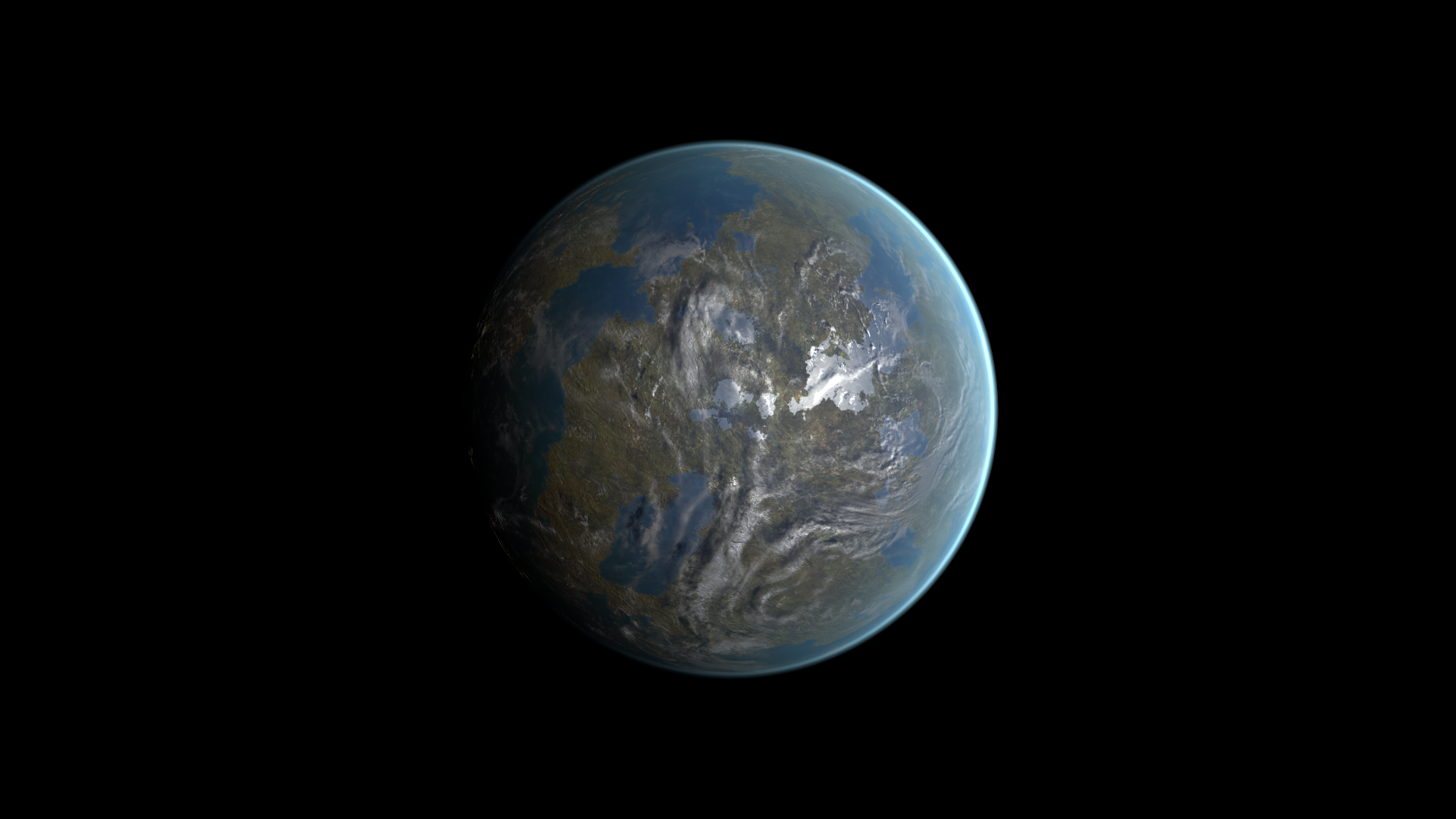
Before: Scattering Intensity = 13.27 on the terrestrial atmosphere.
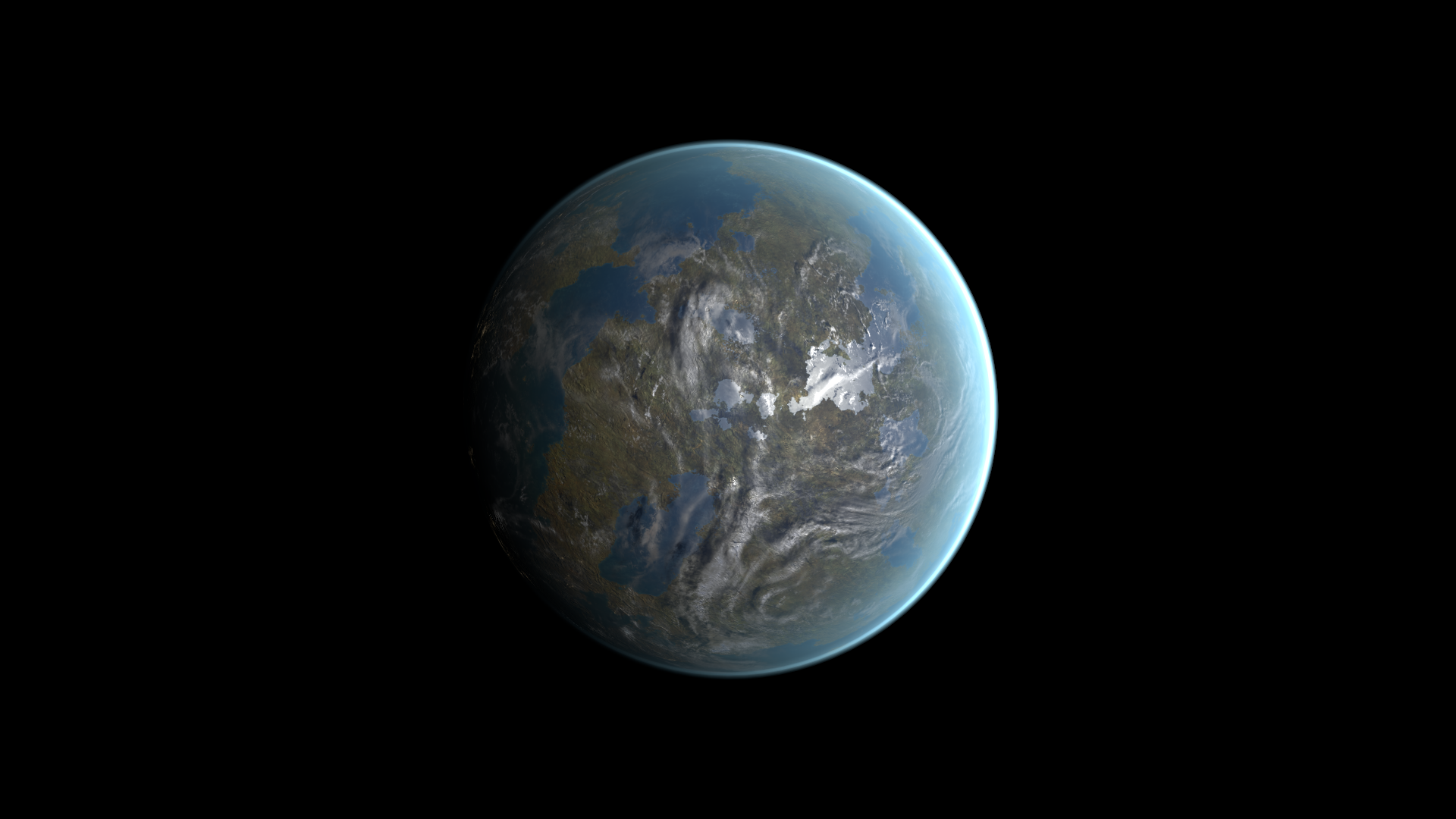
After: Scattering Intensity = 26.54. Look at the stronger illuminated arc.
Atmosphere adds color over the scene. Its color alpha is not an ordinary opacity slider. Multiple shells can add together, so identify each material before changing all of them. Vertex Offset adjusts shell fit; keep the prefab proportions initially. See Atmosphere reference for the ramp, offsets and additional comparisons.
Reveal terrestrial city lights
Section titled “Reveal terrestrial city lights”City lights are masked surface emission on Terrestrial. To see them, rotate the light so the camera faces more of the night side. Keep City Light Map, CityLight UV Map and CityLight Mask Map assigned, then adjust CityLight Color.
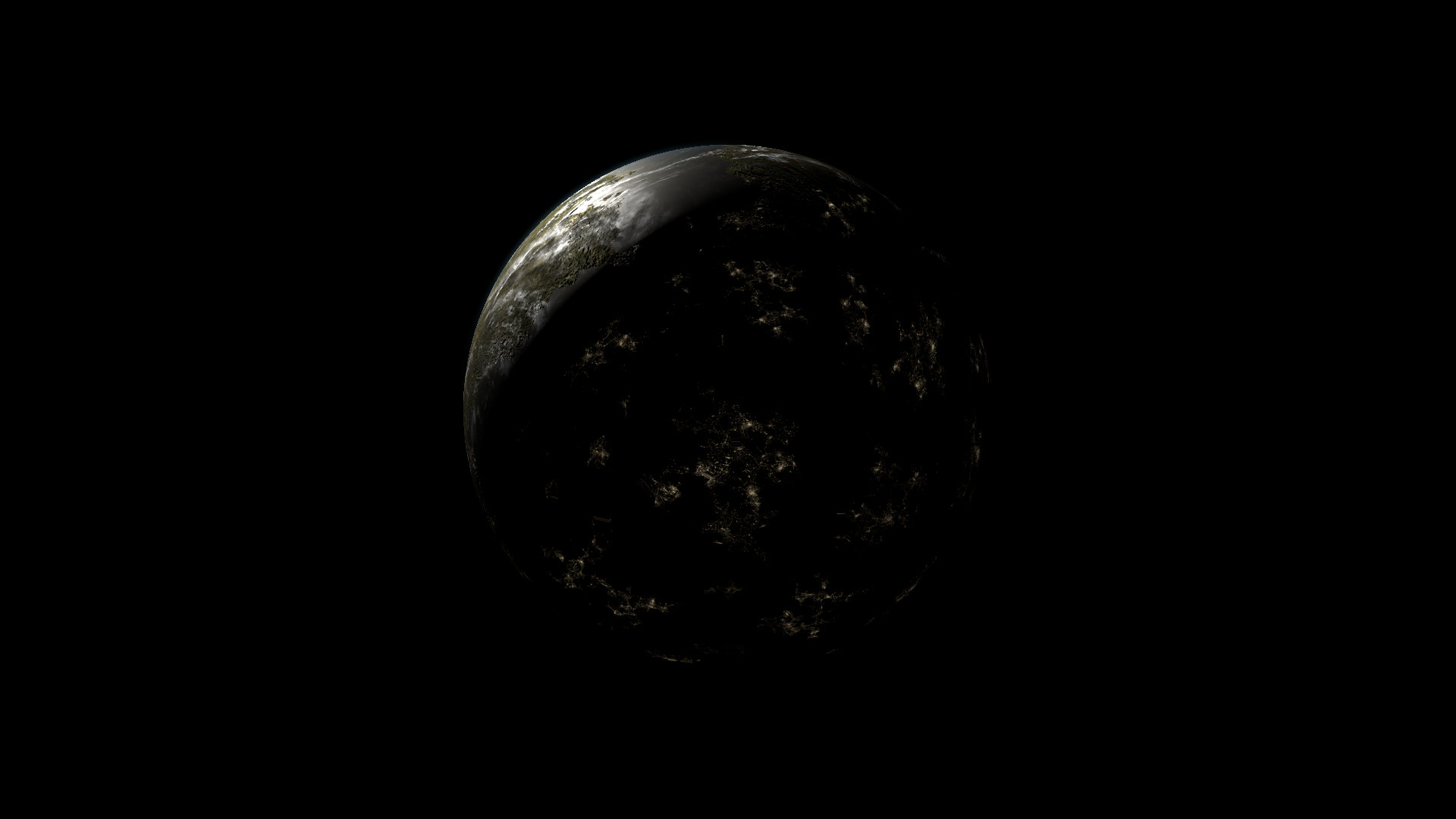
Night-side view using the supplied city maps. Land, the night-side shading and cloud shadow shape the emission.
CityLight Population reshapes the city mask; it is not a count of generated city objects. Keep it positive and nonzero. Cities do not cast light onto other objects. Use Terrestrial reference for the color on/off comparison and exact property IDs.
Add lightning and molten emission
Section titled “Add lightning and molten emission”For lightning, start with Thunderstorm/Planet_Thunderstorm_01.prefab. Tune Lignting Mask Pow before increasing Lightning Boost, and inspect several pulses in Play Mode. Lighting A Frequency and Lighting B Frequency change texture-offset cadence; a still frame does not show that timing.
For molten terrain, use Lava/Planet_Lava_01.prefab. Shape the lava mask and Magma Power first, then set Magma Color Min/Max and Magma Glow. Increasing glow alone can wash detail out. Lava’s custom shading still uses the main light even though much of its visible color is emissive.
See Thunderstorm, Lava and Practical workflows for complete starting recipes.