

Clouds and cloud shadows
Start with the body material on Planet_Terrestrial_01. Its cloud layers are built into the surface material. Keep the original Clouds Top and Clouds Middle textures, then work through one group at a time.
Cloud appearance
Section titled “Cloud appearance”- Clouds Top and Clouds Middle use red-channel masks. Clouds Blend Weight mixes the two patterns.
- Clouds Tint sets their color. Clouds Output controls how much visible cloud color contributes to the surface. Compare
1and0on Terrestrial 01 to see the difference.
Cloud movement
Section titled “Cloud movement”Change Clouds Top Speed and Clouds Middle Speed to pan the patterns. Start with the authored values. Preview several seconds in Play Mode and adjust one layer’s speed at a time. Different speeds let the layers drift past one another.
Cloud shadows
Section titled “Cloud shadows”Cloud Shadows adjusts darkening on the ground. Clouds Height affects the offset of the light-driven shadow sample. Use a partly side-lit view with readable land or water beneath the clouds. For a clear test, lower Cloud Shadows to 0 while keeping Clouds Output fixed. Reducing visible clouds alone can leave their ground shadows in place.
Cloud specular occlusion
Section titled “Cloud specular occlusion”On Terrestrial and Oceanic, Cloud Occlusion controls how strongly the cloud mask suppresses highlights. Find a visible water highlight first. Compare the following settings while keeping Clouds Output and Cloud Shadows fixed.
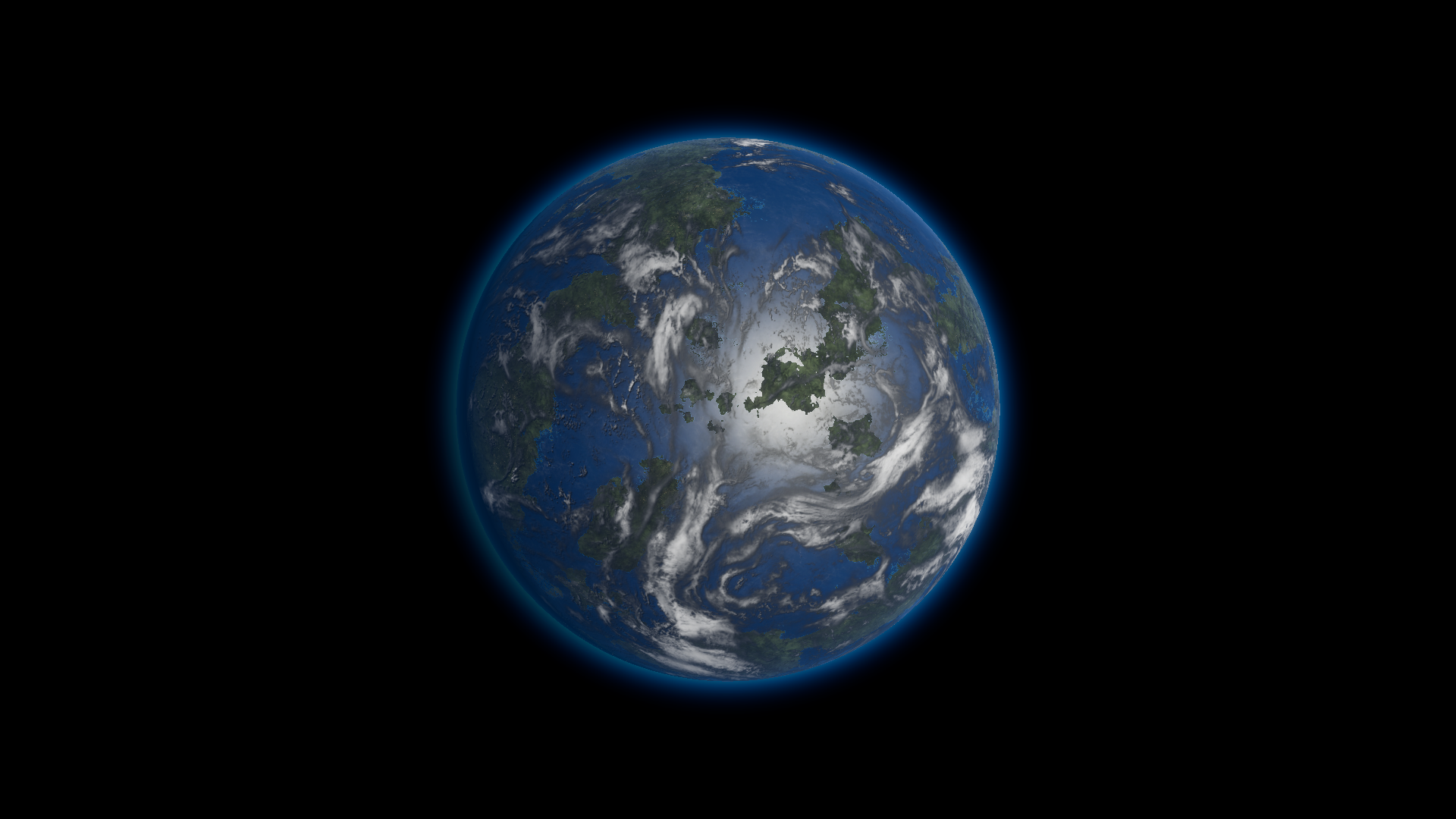
Before · Cloud Occlusion 0.45 on Terrestrial 01.
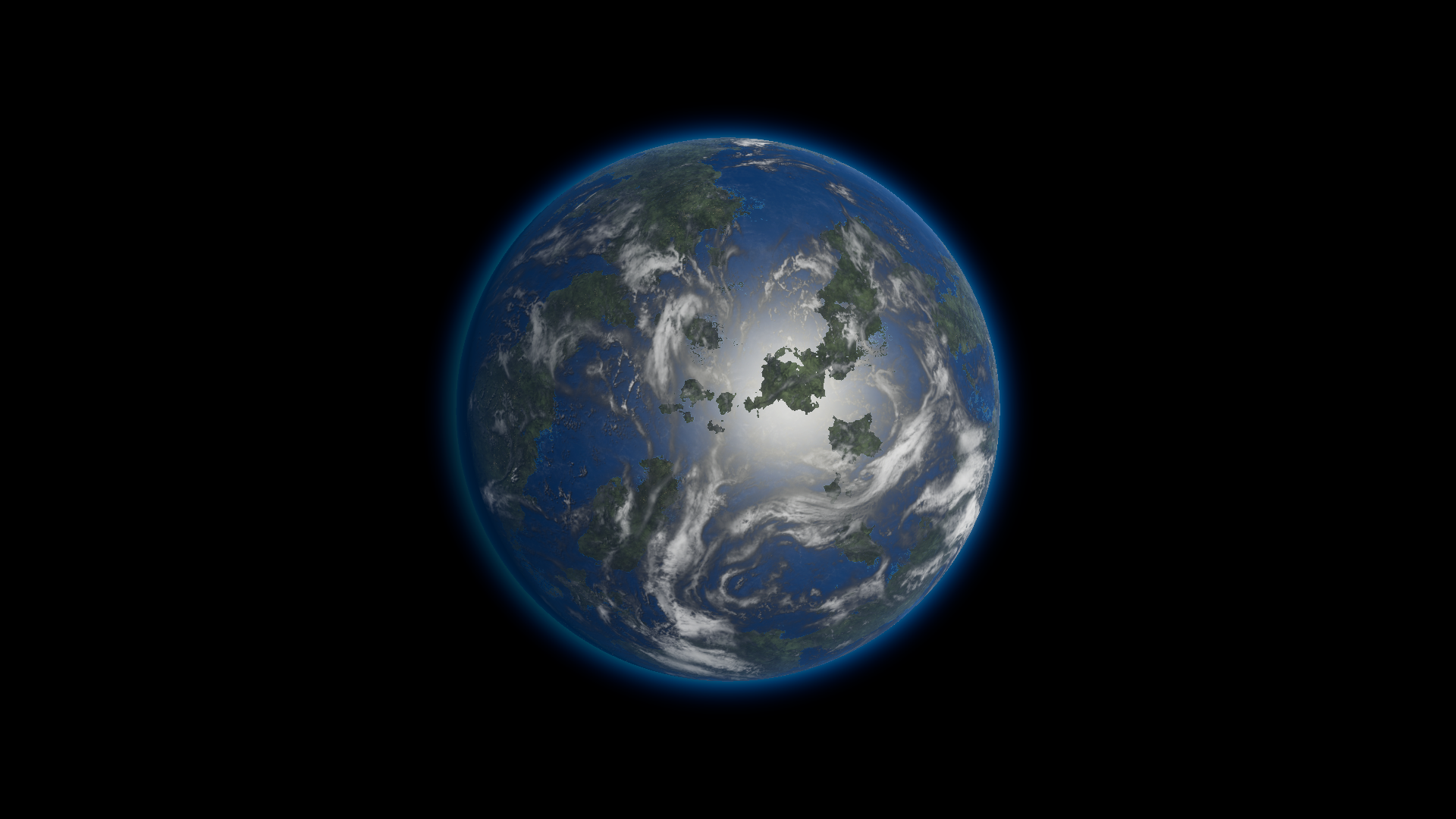
After · Cloud Occlusion 0. The cloud color and ground-shadow settings stay fixed.
For the shader-specific controls, see Terrestrial, Oceanic and Sand.